

beasty-visual-novel / authoring / dialogue-and-stage.md
Dialogue and the stage
This page is about the two things you do most: writing a line, and dressing the scene it happens in. Both live inside a Dialogue Node, as blocks. If you have not read Blocks reference, the short version is: blocks run top to bottom, and only a Dialogue block stops and waits for the player.
The pattern for almost every scene is the same. Set the stage, then talk.
Backdrop         bedroom
Show character   Maya, expression "happy", position Left
Dialogue         Maya: "You are finally awake."
Dialogue         (no speaker): "The light through the curtain was already yellow."
The backdrop and the character appear in the same instant the first line does. The player sees a dressed scene, not a slideshow of it being built.
The Dialogue block
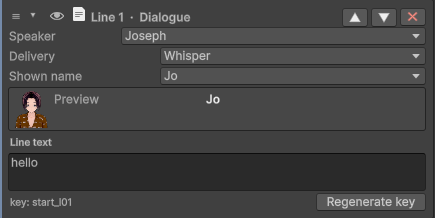
The speaker
Pick the character from the dropdown. Their name plate, their name colour, their portrait and their font all come from the character definition — you do not repeat them per line.
Leave the speaker empty and the line is narration. No name, no portrait, just text. That is the whole mechanism; there is no separate narrator character to create.
The text
Type the line. The editor stores it under a localization key and manages that key for you; you never see a key unless you go looking. Translating the line later is a separate job, done in the Localization tab — see Localization.
Text can contain [token] terms that resolve to a variable or a dictionary entry at runtime, so a line can
say the player’s name or the city they chose. See The dictionary.
The delivery state
The Delivery field says how the line is delivered: Normal, Whisper, Shout, Thinking, or any
state you invent. Empty means Normal.
A delivery state is not decoration in the block. It is a lookup into the speaking character’s delivery styles, and a style can change:
| The style can set | Effect on the line |
|---|---|
| Font | A different TMP font for this state. |
| Text colour | Overrides the character’s normal body colour. |
| Font size multiplier | For example 1.3 to make a Shout physically bigger. |
| Name prefix / suffix | Decorates the name plate, for example “Maya (thinking)”. |
| Text effect | None, Wave, Shake, Fade or Pulse, animated on the text at runtime. |
So Shout on Maya can mean a bigger, red, shaking line, and Whisper can mean a small, grey, breathing one
— and you get both by picking a word in a dropdown, once you have defined the styles on the character. A
character with no style for a state falls back to their defaults.
Delivery styles are authored per character. See Characters.
The display-name alias
The Display name alias field shows the speaker under a different name for this line only.
The classic use: the player has not been introduced yet, so the mysterious woman speaks as “The Stranger” for two chapters. You still author her as Maya — same character, same variables, same expressions — and every line simply carries the alias. The moment she introduces herself, you stop setting the alias, and she is Maya from then on.
The alias comes from the character’s alias list. It changes nothing else: not her id, not her name anywhere
else, not the value of @char:maya:@name.
Note The alias is per line. To change a character’s name permanently — because the player renamed them, or because they were unmasked — use the Character name block instead. It writes a persisted override.
The stage
The stage has three independent channels: the backdrop, the characters, and the props. Each keeps its current value until a block of the same channel changes it. You never repeat the backdrop.

Backdrop
A backdrop is either sprite layers or a video. It cannot be both.
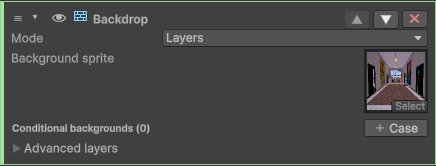
Layers is the normal case. Up to five sprite layers, each with:
- a sprite,
- an order (0 is drawn furthest back),
- an offset,
- a parallax factor (0 = static, 1 = moves fully with the camera),
- an optional list of conditional sprites.
Conditional sprites are how one backdrop becomes four. You give the layer an ordered list of cases, each with
a condition; the first case whose condition passes wins, and if none do, the layer’s default sprite is used.
A bedroom layer with cases for time.daypart == Night and time.daypart == Evening is a bedroom that
darkens by itself, with no extra blocks anywhere in the story. An empty condition always passes, so a case
with no condition acts as a catch-all — put it last.
Video mode replaces the layers with a video clip:
| Option | What it does |
|---|---|
| Clip | The video. |
| Loop | Repeat when it reaches the end. |
| Mute | Silence the clip’s own audio track. |
| Volume | 0 to 1, when not muted. |
| Play on enter | On by default: the video starts as soon as the backdrop becomes active. Turn it off to start it yourself from code. |
Warning An empty Backdrop block does nothing. It does not go to black — it is skipped, and the previous backdrop stays. To remove the background, use the Clear > Backdrop block.
Show character
Puts a character on stage, or replaces them if they are already there.
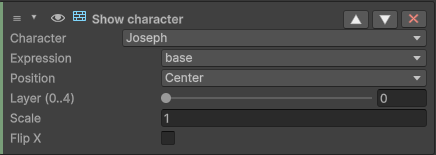
| Option | What it does |
|---|---|
| Character | Who walks on. |
| Expression | Which stage sprite to use. Defaults to base. |
| Portrait | Optional. Sets a UI portrait different from the stage expression. Empty = the portrait follows the expression. |
| Position | Left, CenterLeft, Center, CenterRight, Right, or Custom (a normalized X from 0 to 1). |
| Scale | Size multiplier. Use it for distance. |
| Flip | Mirrors the sprite, so one sprite faces both ways. |
| Layer | Slot 0 to 4. Higher is drawn in front. Two characters at the same anchor need different layers, or they overlap. |
Who is on stage is independent of who is speaking. A character can speak without being on stage, and stand on stage for a whole scene without saying a word.
Expression
Changes the expression of a character who is already on stage. It is lighter than a second Show character block, and it is what you use between lines.
It has one extra option worth knowing: also set the portrait. Turn it on and the block sets the dialogue box portrait too — either to a portrait key you name, or to the character’s base portrait if you leave it empty. That lets the stage sprite and the little head icon disagree on purpose, which is useful when the character is turned away, or hiding what they feel from everyone but the player.
Hide character
Takes one character off the stage. The others stay.
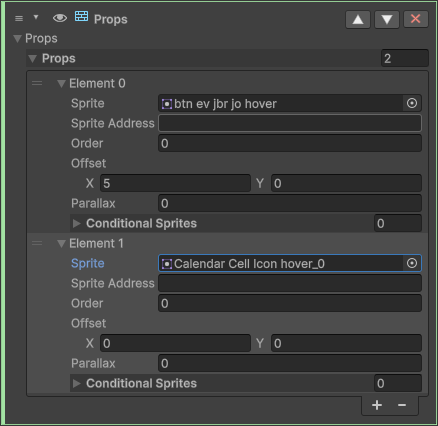
Props
Props are loose foreground or background images layered over the backdrop — a table, a falling leaf, a window frame. A Props block sets the whole prop set at once, and each prop has the same options as a backdrop layer, conditional sprites included.
The three Clear blocks
| Block | What it removes |
|---|---|
| Clear > Characters | Every character, or just the one in a given position (anchor plus layer). |
| Clear > Backdrop | The background, sprite layers or video. This is how you go to black. |
| Clear > Props | Every prop. |
They are the only way to blank a channel. Assigning nothing to a Backdrop, Show character or Props block does not clear it — it skips the block.
The expression and portrait fallback chain
You will not draw every expression for every character, and you do not need to. On the stage, the chain is:
the expression you asked for -> the character’s base sprite
So a character with only a base sprite still works everywhere: ask for angry, get base, and the game
runs. Nothing errors, nothing goes pink. Draw the angry sprite later and every line that already asked
for it starts showing it. Two edges worth knowing: a character with no base sprite renders as an empty,
invisible slot with no warning, so give everyone a base; and an expression entry that exists but has no
sprite assigned counts as art — it shows nothing rather than falling back.
Portraits walk their own chain: the portrait key you asked for, then the character’s base portrait.
If neither exists, the dialogue box hides the portrait panel — it never borrows the stage sprite. A
character with stage art but no portrait art simply speaks without a portrait.
The default expression key is base. Expressions and portraits are set up per character in
Characters.
See also
- Blocks reference — every block, including these.
- Characters — expressions, portraits, delivery styles, aliases.
- The story graph — the nodes these blocks live in.
- Dialogue preview — see the stage without pressing Play.