

beasty-visual-novel / authoring / dialogue-preview.md
Dialogue preview
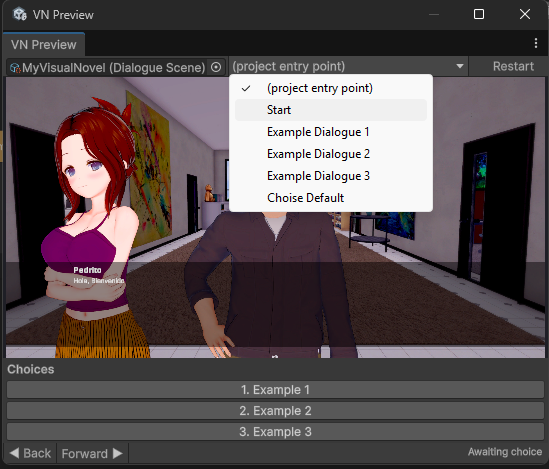
The Dialogue Preview shows you what a node looks like — the backdrop, the characters, the props, the dialogue box — without entering Play Mode. It is for the ten-second question you ask a hundred times a day: is she on the correct side of the screen, is that the right expression, does the line fit in the box.
Open it with Tools > Beasty VN > Dialogue Preview.

Using it
The toolbar at the top has three things:
- The Visual Novel field. Drop a
DialogueScenein it. - The node dropdown.
(project entry point)starts at the beginning of the project; below it, every dialogue node in the root graph, by name. - Restart, which begins the preview again from the top.
The preview renders in the middle. Click anywhere on the image to advance, exactly as a left click
advances the real game. At the bottom, Back and Forward step through the node, and a status label tells
you where you are: the line number, Awaiting choice, or End of story.
When the preview reaches a choice node, the options appear as buttons under the image. Click one and the preview follows it.
The per-block preview button
You do not have to click from the top of a node to get to line eleven.
In the Story tab, every block in the selected node’s stack has a small preview button on its row (its tooltip reads “Preview up to this block”). Press it and the preview window opens, fast-forwarded to the exact moment that block plays — the stage dressed as it will be dressed, that line on screen.
This is the fast way to work. Write a block, press its preview button, look, fix, press again.
Unlike the node dropdown, which lists nodes from the root graph, the per-block button works on nodes inside subgraphs too.
Inherited scenery
A node usually does not set every channel itself: it inherits the backdrop from whatever node came before it. The preview reconstructs that. It walks backwards along the chain of nodes leading to yours and fills each channel — backdrop, characters, props — from the nearest ancestor that sets it.
It does this on a best-effort basis: it follows a chain of single, unambiguous predecessors, and it stops when it reaches a branch or a merge, because at that point there is more than one answer and it will not guess. If a node you are previewing is reached from three different places, and it inherits its backdrop, the preview may show it with no backdrop. That is not a bug in your scene. Set the channel explicitly, or preview from a node further up the chain.
What it does not do
The preview is a preview of presentation. It runs the real story engine, so the branching, the conditions and the stage are real, but the following are deliberately not wired:
- No audio. Music, ambience, voice and sound effects do not play. The preview is silent.
- No video. A video backdrop does not render.
- No text input. The
Askblocks do not open their text box. - No typewriter. Each line appears fully revealed at once, because the animation cannot run outside Play Mode. You cannot judge the typing speed here.
It also touches nothing. It builds its own throwaway scene, it never modifies the scene you have open, and it saves nothing.
When you still need to press Play
Preview the look; play the game. Press Play when you need to check:
- Audio: cues, crossfades, whether the music ducks where you wanted.
- Timing: the typewriter,
Waitblocks, auto-advance, skip. - Input: the
Askblocks, rebound keys, a controller. - Anything that leaves the novel: free roam, room transitions, another VN scene.
- Saving, loading and rewind.
- The HUD and overlay screens.
See also
- The story graph — the canvas the preview button lives beside.
- Dialogue and the stage — what you are looking at in the preview.
- Blocks reference — the blocks whose rows carry the preview button.