

beasty-visual-novel / world / interactables-and-doors.md
Interactables and doors
Everything the player can click inside a room: objects, doors, and the characters standing in it. This page is for writers and designers.
Every clickable thing in a room is the same kind of record — a button — with a different job. You author
them by drilling into a room in the FreeRoam tab (Tools > Beasty VN > Editor) and selecting the object.
Remember the split: the room prefab owns the art and the position; the map graph owns what the thing does. They are linked by name.
Deleting works from the same place: the ✕ on a door or object chip in the room timeline, or the Delete door… / Delete object… / Delete pose… button in the selected element’s inspector. Both ask for confirmation first, and both also remove the matching child from the room prefab, in one undo step.
Kind and function
A button has a kind and a function (its action).
| Kind | What it means |
|---|---|
Navigation | A door. Clicking it moves the player to another room. |
Interaction | An object. Clicking it acts in place; the player does not move. |
| Function | What clicking it does |
|---|---|
| Door (go to room) | Go to the target room. |
| Enter VN | Play a visual novel scene, then come back to this room. |
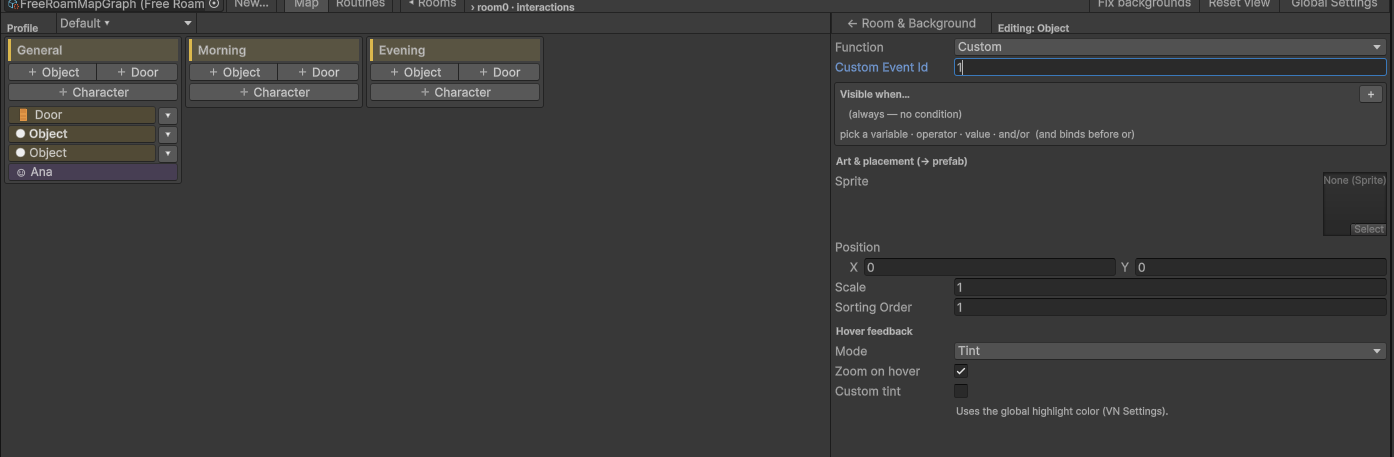
| Custom | Raise a custom event id for your own code to handle. |
| Talk menu | Open a character’s talk menu. Only offered on an object that has an owner character. |
For Enter VN you pick the scene and, optionally, a start node inside it (empty means the scene’s entry node). When the scene ends, the player is returned to the room they clicked from.
For Custom you type an event id. Nothing happens by default; a script of yours listens for it. This is the hook for a minigame, a shop, a puzzle — anything that is not a conversation.
Art and placement
| Field | What it is |
|---|---|
| Sprite | The clickable art. |
| Position | Where it sits in the room, in world units. |
| Scale | Its size. |
| Sorting Order | Draw order inside the room. Higher is in front. |
When the room has a prefab, these fields are mirrored into the prefab’s matching child object, so you can also drag the object around in the prefab and the room record follows.
The click area is built from the sprite. By default that is the sprite’s shape — but see Tight click shapes if your art is mostly transparent.
Hover feedback
Pick one Mode:

| Mode | What the player sees |
|---|---|
| Tint | The idle sprite is tinted. This is the default. |
| Swap | The sprite is swapped for a hover sprite. |
| None | No colour or sprite change. |
| Animation | An idle clip and a hover clip, with the Animator built for you. |
Plus Zoom on hover, an independent toggle that applies to Tint, Swap and None. (Animation drives its own scale, so the zoom is not offered there.)
Notes worth knowing:
- Swap with no hover sprite falls back to Tint. An object always has some feedback; it never goes dead.
- Tint uses the global highlight colour from VN Settings unless you tick Custom tint and pick your own.
- Animation needs a room prefab — the clips live on the prefab’s object. Assign an idle and/or a hover clip and the AnimatorController is generated and wired automatically. Choosing a sprite or tint mode again clears the clips, so the sprite-based feedback takes over again.
Visibility
Every object has a Visible when condition. When it fails the object is not drawn and not clickable — it does not exist for the player. An empty condition means always visible.
This is how a room changes over the game without duplicating it: the broken window only appears after the storm, the note on the table only while the quest is active, the shopkeeper’s stall only on market day.
Doors
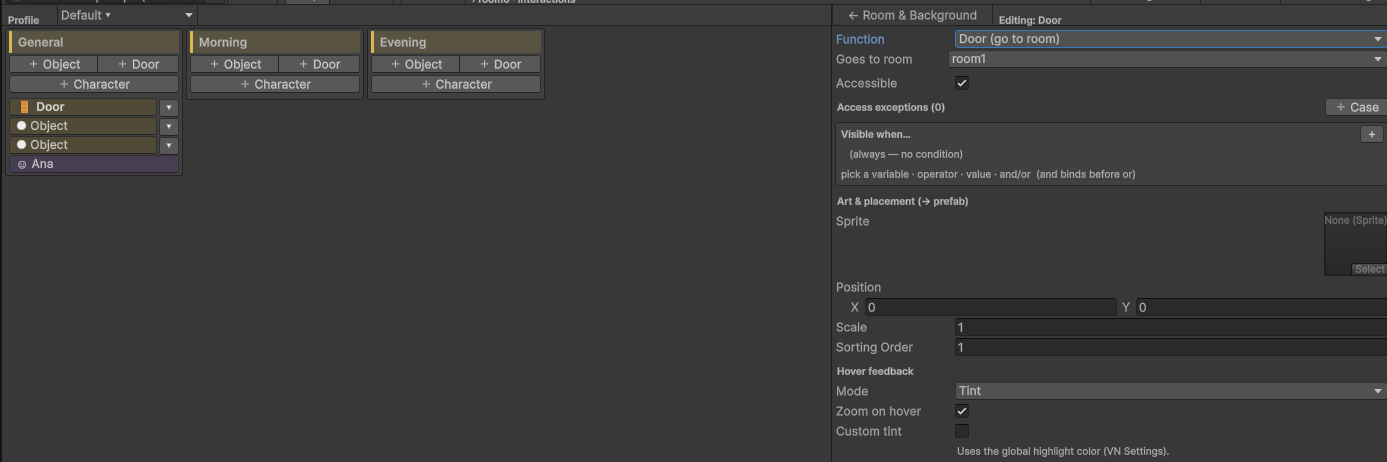
A door is a button of kind Navigation. Beyond the shared fields it has:
| Field | What it is |
|---|---|
| Goes to room | The destination room. |
| Passage id | Optional. The two doors of one passage — the door in room A and the door in room B — share this id. Leave it empty for a lone door with no linked return. |
| Accessible | Whether the door actually opens. |
| Blocked Dialogue | The scene played when a locked door is clicked. |
| Access exceptions | Conditional overrides of Accessible. First match wins. |
Create doors from the room’s drill-in (+ Door in a lane), or by dragging from one room to another in the map view. There is at most one door per direction between two rooms.
Access: locking a door, and explaining why
Turn Accessible off and the door is still drawn and still clickable — it simply does not move the player. Instead it plays its Blocked Dialogue (with an optional start node) and returns to the room. That is the door that says “It’s locked. I’d need the key.” rather than the door that silently refuses.
Note A locked door with no blocked dialogue is shown and clickable but does nothing at all. If the door should be invisible instead, use its Visible when condition rather than the access flag.
Access exceptions are an ordered list of conditional cases. Each has a condition, an accessible flag, and optionally its own blocked dialogue. The first case whose condition passes wins; if none passes, the default flag above is used. A case with no blocked dialogue of its own falls back to the door’s default one, so you can lock a door conditionally without repeating the “it’s locked” scene.
Locked at night, open by day:
Accessible          = on
Access exception 1  : if  time.daypart == Night   -> Accessible = off,  Blocked Dialogue = "Shop_Closed"
Or the reverse — a door only the key opens:
Accessible          = off        Blocked Dialogue = "Door_Locked"
Access exception 1  : if  item.rusty_key >= 1     -> Accessible = on
Conditional VN: the same object, a different scene
An Enter VN object has a default scene, plus an ordered list of conditional VN cases. On click, the first case whose condition passes plays; if none does, the default scene plays.

The bed is the example everyone needs:
Case 1  : if  time.daypart == Night     -> "Sleep"
Default :                                  "Not bedtime yet"
The object stays one object. Its meaning changes with the world.
Character poses
Give an object an owner character and it stops being an object: it is that character, standing there. Author them from the room’s drill-in with + Character (choose who) and then + Pose for each look.

- A character can have several poses in one room — sitting at the counter, leaning on the doorframe, arms crossed. Each pose is a separate object with its own sprite, position and Show pose when condition.
- Only the first visible pose per owner is shown. The list is a priority order: the first pose whose condition passes is drawn and the rest are skipped. The character is never drawn twice.
- The editor injects the character’s presence into the pose’s visibility, so a pose only ever appears while the character’s routine actually puts her in this room. You do not have to write “and Maya is here” by hand.
- A visible pose replaces the generic routine marker. Without a pose, the character is drawn at a character spot using her free-roam sprite; with one, your art wins.
Clicking a character — pose or generic marker — runs her routine’s on-interact scene, or her talk menu when she has one. See Character routines.
Advance time on click
A room object can move the game clock by itself. Two fields on the object’s record:
| Field | What it does |
|---|---|
| Advance time on click | Turn it on to apply a time change when the object is clicked. |
| Time effect | The same operations as the Advance time block: advance dayparts, hours or days; set the daypart, the hour or the weekday. |
This is the shortcut for a bed or a clock — an object whose entire job is to move time.
Note These two fields live on the object’s record inside the FreeRoam Map Graph asset. The room’s drill-in editor does not surface them: select the map graph in the Project window and edit the object under Rooms > Buttons > Advance Time On Click and Time Effect.
When the interaction also needs dialogue, do not use it. Have the object Enter VN instead, and put an Advance time block inside that scene:
[Dialogue]      "You lie down and pull the blanket over your head."
[Advance time]  op = SetDaypart, daypart = Morning
[Dialogue]      "Sunlight. Already."
You get the line, the sound, the fade — and the time change — in the order you wrote them, and it all rewinds correctly.
Tight click shapes
The click area of an object comes from its sprite. For art whose bounding box is much bigger than the thing you actually want clickable — a thin lamp chain, a sword lying diagonally, a character cut-out with a lot of empty corners — the box catches clicks that were meant for the room behind it.

Select the sprites and run:
Tools > Beasty VN > Content > Generate Tight Click Shapes (Selection)This builds a click area that follows the sprite’s opaque pixels instead of its bounding box.
Warning This matters most for overlays with a soft, mostly transparent edge — a fog layer, a vignette, a faint glow. Left with a bounding-box shape, such a sprite silently swallows every click in the room. If a room stops responding to clicks after you add an overlay, this is why.
See also
- Free-roam rooms — the map, rooms, room prefabs, conditional backgrounds.
- Talk menu — what clicking a character opens.
- Character routines — who is standing in the room.
- Game time — the Advance time operations in full.
- Variables and conditions — how conditions are built.