

beasty-visual-novel / world / characters.md
Characters
A character is one cast member: a name, a set of sprites, a way of speaking, and a bag of numbers that the story changes. This page covers everything you author on a character. It does not cover what they say — that is Dialogue and stage.
Creating a character
Two ways, same result:
Create > Beasty VN > Characters > Character Definitionin the Project window.- Open
Tools > Beasty VN > Editor, go to the Characters tab, Cast sub-tab, and press + New Character. This is the way you will normally use, because the character is added to the shared context for you.
The Characters tab is also available on its own through
Tools > Beasty VN > Content > Character Database. It has four sub-tabs: Cast (identity, aliases,
expressions, delivery styles, portraits), Variables (stats), Quests and Talk Menu.

Identity
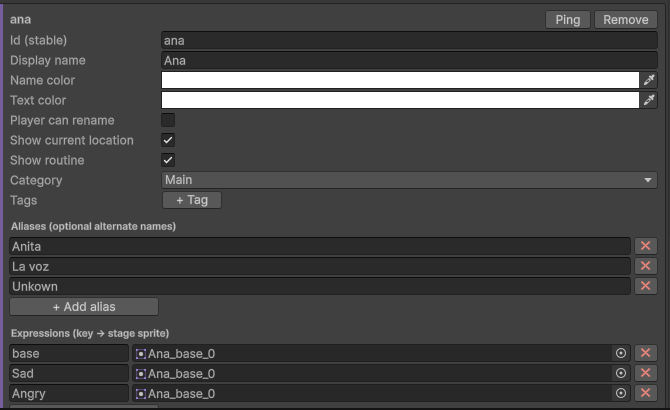
| Field | What it is |
|---|---|
| Id | The stable name the whole engine uses (maya). Auto-filled from the asset name as a lower-case slug, and editable. |
| Display name | The name the player reads. Plain text, not translated. It may contain [tokens]. |
| Name color | The accent colour of the nameplate. |
| Text color | The default colour of this character’s body text. A delivery style (below) can override it. |
| Player can rename | If on, the player may rename this character at runtime, and their name wins over yours. |
| Category | Main or Secondary. Groups the cast in the editor. |
| Tags | Free-form labels (feminine, a faction, a chapter). They group and filter the cast list in the editor. Add them with + Tag. |
The id is what everything else points at: blocks, conditions, quests, routines. The display name is only presentation, and it can change during the game. Rename the id and the editor cascades the rename; see Validation and ids.
Note The display name is NOT translatable, on purpose. It is the character’s name. If it must differ by language, put a
[token]in it and set the token per language, or use the Character name block described below.
Expressions and portraits
Two separate sprite sets, because they are two different pictures.
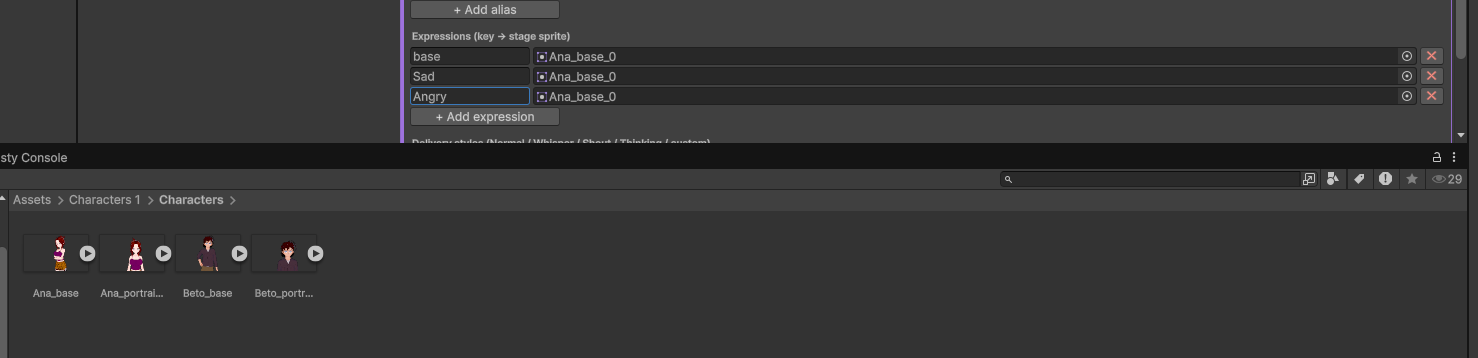
- Expressions are the stage sprites — the full body or bust the player sees on the backdrop. Add them
with + Add expression. Each is a key plus a sprite:
base,sad,angry, whatever you want. There is no fixed list. - Portraits are the small UI icons shown next to the dialogue box. Add them with + Add portrait.
They use the same keys as the expressions, so a
sadline can show asadhead icon.
base is the default key. A Show character block with no expression key, or an Expression block
pointing at a key you have not made, still puts the character on stage, because of the fallback chain:
expression asked for  ->  base expression  ->  nothing
portrait asked for    ->  base portrait    ->  the stage sprite for that expression
So a character with only stage sprites still gets a portrait: the engine reuses the stage sprite. A
character with no base expression shows nothing, which is the one case to watch for.
Delivery styles
A delivery style is how a character sounds when they are in a particular state. Add one with + Add delivery style and pick the state it applies to.
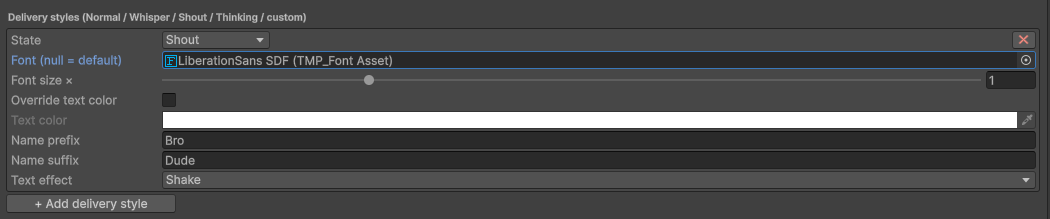
The built-in states are Normal, Whisper, Shout and Thinking. You may type any other key you like and use it as the delivery state on a Dialogue block; there is nothing special about the four built-ins.
Each style sets:
| Setting | Effect |
|---|---|
| Font | The TextMeshPro font used for this state. Empty = the default TMP font. |
| Override text color + Text color | Force a body-text colour for this state instead of the character’s default. |
| Font size multiplier | Multiplies the body font size. 1 = unchanged, 1.3 = shouting. |
| Name prefix / Name suffix | Decorate the nameplate for this state, e.g. a suffix of " (thinking)". |
| Text effect | An animated decoration on the body text: None, Wave, Shake, Fade or Pulse. |
Anything you leave alone falls back to the character’s own defaults. A character that defines no style for a state speaks normally in it — you never have to fill in all four.
Aliases: showing a different name
An alias is another name for the same character. Use it when the player does not know who they are talking to yet.

Add aliases with + Add alias — they are plain strings (“The Stranger”, “The Voice”). Then:
- For one line only: on a Dialogue block, set its display-name alias. The nameplate reads
“The Stranger” for that line and nothing else changes. The character’s id, variables and sprites are
untouched. In the text script this is
maya as "The Stranger" "...". - For good: use the Character name block (palette category State). It changes the displayed name from that point on, and the change is saved and rewinds like any other state.
The Character name block takes the new name from one of four sources:
| Source | Use it for |
|---|---|
| Alias | Promote one of the character’s aliases to be their name from now on. |
| Text | A name you type. Optionally a localization key instead of plain text. |
| Variable | The current value of a variable or dictionary token — for example a name the player typed. |
| Reset to base | Drop the override and go back to the display name on the asset. |
The reveal (“the stranger was Maya all along”) is therefore a single block: Character name -> Reset to base.
To let the player name a character themselves, use the Ask -> character name block (palette category Input). It shows a question and an input field, and stores the answer as that character’s name.
Character variables (stats)
A character variable is a number or a flag the character carries: affection, met, trust. They come
from two places, and a character has both:
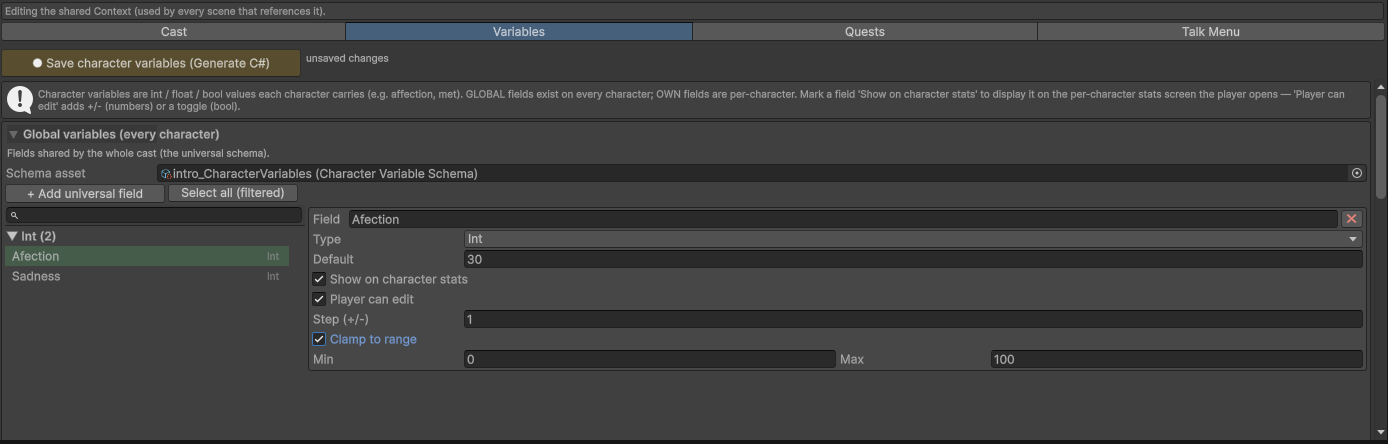
- The Character Variable Schema — the fields every character has. One asset per project
(
Create > Beasty VN > Characters > Character Variable Schema). Declareaffectionthere once and the whole cast has it. Edit it in the Characters > Variables sub-tab, under + Add universal field. - The character’s own fields — declared on that one character, in the same sub-tab. Use these for things only this character has.
Every field has:
| Field | What it does |
|---|---|
| Key | The field name, no brackets: affection. |
| Type | Int counter, Float value or Bool flag. |
| Default value | The starting value, before anything sets it. |
| Show on stats | Show this field on the character’s stats screen. Off by default. |
| Editable | Let the player change it from the stats screen (+/- for numbers, a toggle for bools). Off = read-only. |
| Clamp + Min / Max | Keep the value inside a range when the player edits it. |
| Step | How much each +/- press adds or subtracts. |
Both presentation flags start off. A new field is game state first; putting it in front of the player is a decision you make on purpose.
Overriding a schema default for one character
Everyone starts at affection = 0, but Maya starts at 10 because she is your sister. You do not need a
second field for that. In the character’s Variables sub-tab, override the universal field’s default
value for this character only. You can also override whether that one field shows on this character’s
stats screen, without touching the schema.
Changing a character variable from the story is the Character variable block (palette category
State): pick the character, pick the field, pick the operation. Reading one in a condition is
maya.affection > 5. Both are explained in
Variables and conditions.
The free-roam sprite

The Free Roam Sprite field holds the sprite used when the character stands in a room, placed there by
their routine.
Leave it empty and the character’s base expression sprite is used instead. Where they stand and how big
they are is decided by the room prefab, not here — see Character routines.
Two related toggles control what the player may see about the character’s whereabouts:
- Show current location — show the room the character is in right now on their stats screen.
- Show routine — allow opening this character’s routine calendar.
Appearing in the cast list
The in-game cast list is an overlay screen listing the characters the player has met. Two settings decide who is on it:
- Listed — off means this character is never listed, whatever any condition says. Use it for a character the player is never meant to browse.
- Shown when — a condition. By default every character uses one shared condition, written once
with the
@selfplaceholder: a condition of@self.met == truereveals each character as soon as their ownmetflag is set. Turn on the per-character override to give one character its own condition instead — a story-critical villain who appears only after chapter 3, for example.
An empty condition means “always shown”. @self is explained in
Variables and conditions, and the screens
themselves in Character screens.
The talk menu
Each character has a talk menu: the list of things the player can say to them right now. It is authored in the Characters > Talk Menu sub-tab, and the quest steps that point at this character are added to it automatically. See The talk menu.
See also
- Variables and conditions — the store every character variable lives in
- Character screens — the cast list, the profile, the stats screen
- The talk menu — the per-character conversation hub
- Dialogue and stage — putting a character on stage and making them speak
- Blocks reference — every block, by category