

Visual Novel › Authoring
Visual transitions and screen effects
A visual transition decides how the stage changes from one line to the next: a dissolve, a fade through black, a wipe. A screen effect colors or moves the whole stage: a white flash, a shake, a sepia memory, a slow camera zoom. Both are blocks in the Effects category of the palette, and both leave the dialogue box on top and readable.
This page is about what the player sees. For the blocks that hand control from the novel to free roam or another scene, see Transitions: leaving the novel.
The Effects blocks
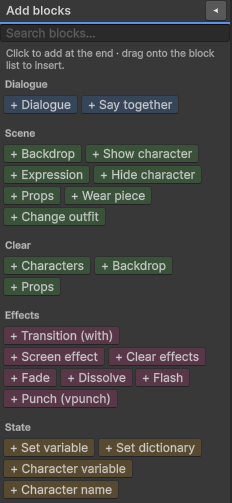
| Block | What it does |
|---|---|
| Transition (with) | Decides how the next line’s scene change is presented. |
| Screen effect | Adds a flash, shake, tint, color screen, color filter, vignette, blur or camera move. |
| Clear effects | Removes every screen effect, or only one kind. |
| Fade, Dissolve | Shortcuts: a Transition block already set to that preset. |
| Flash, Punch (vpunch) | Shortcuts: a Screen effect block already set to that preset. |
The block editor shows only the fields of the mode or effect you picked. A tint never shows camera fields.
Transitions
Put a Transition (with) block before a line. Every scene change of that line — backdrop, characters,
props, a video backdrop — is presented with it. The idea comes from Ren’Py’s with statement.
Transition (with)   dissolve
Backdrop            Kitchen, night
Show character      Mia
Dialogue            Mia: "You are back late."
The backdrop and Mia dissolve in together, then the line appears.
- A line with no transition block cuts instantly, as it always has.
- If a line has several transition blocks, the last one wins. The validator warns about it.
Transition modes
| Mode | What the player sees | Its own fields |
|---|---|---|
cut | An instant change. | — |
dissolve | The new scene fades in over the old one. | — |
fade | The old scene fades to a color, then the new one fades in. | Color, hold time, cover the dialogue box |
wipe | A line sweeps across the screen. | Direction (left, right, up, down), soft edge |
slide | The new scene slides in over the old one. | Direction |
push | The new scene pushes the old one off screen. | Direction |
iris | A circle opens (in) or closes (out) around a point. | In or out, center point, soft edge |
pixellate | The old scene breaks into blocks that resolve into the new one. | Largest block size |
zoom | Zooms into the old scene (in) or out of the new one (out). | In or out, center point |
mask | A grayscale texture decides which parts of the screen change first. | Texture, soft edge, invert |
Every mode also takes:
- Duration — seconds the transition takes.
- Easing — the speed curve:
linear,in(starts slow),out(ends slow),inout. - Wait for completion — on by default: the line appears once the transition finishes. Turn it off and the line appears while the transition plays.
A mask transition works like Ren’Py’s ImageDissolve. Dark pixels of the texture change first and light
ones last, or the other way round with Invert. Any grayscale image works: a heart, a horizontal
gradient, noise.
Screen effects
A Screen effect block adds one effect, by kind:
| Kind | What it does | Its own fields |
|---|---|---|
flash | A burst of color that fades out. | Color, intensity, cover the dialogue box |
shake | Shakes the stage. A punch is one hit; continuous keeps shaking. | Axis (horizontal, vertical, both), amplitude, frequency, punch or continuous |
tint | Lays a color over the stage. | Color with transparency |
color screen | Covers the stage with a solid color, for a held black screen. | Color, cover the dialogue box |
color filter | Turns the stage grayscale, sepia or inverted. | Filter, intensity |
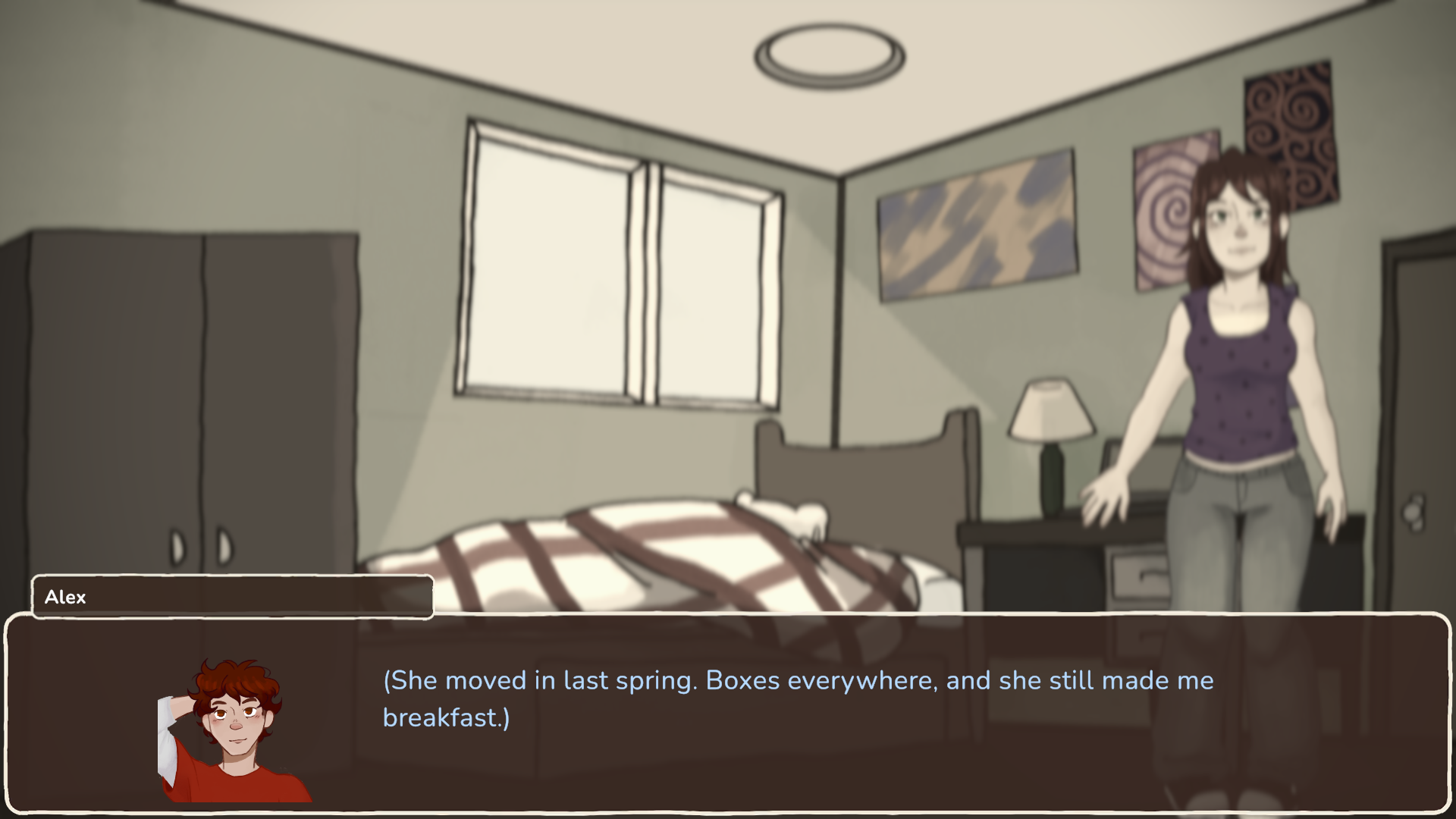
vignette | Darkens the edges of the screen. | Color, intensity, smoothness |
blur | Blurs the stage. | Radius |
camera | Zooms toward a point and pans. | Zoom, pan, focus point |
One effect per kind at a time. A new effect replaces an active one of the same kind; effects of different kinds stack. A sepia filter plus a vignette plus a blur is one look made of three effects.
How long an effect lasts
Each Screen effect block chooses its duration:
| Option | The effect ends |
|---|---|
| Until the stage changes (default) | At the first later line where the backdrop, characters, props or effects change. |
| Until the next line | When the next line appears. |
| Until cleared | When a Clear effects block removes it. |
| Seconds | After that many seconds. It plays once, as a pulse. |
Flashes and punch shakes always play once, whatever you pick. Each effect also has Fade in and Fade out times, under Advanced.
Clearing effects
Clear effects removes every screen effect on stage, or only the kind you pick (for example, only the shake). Use it to end an effect you set to Until cleared: the flashback is over, the color comes back.
Presets
A preset is a named, ready-made transition or effect. Pick one on a block and you are done; or change any of its fields on that block alone with the small toggle next to the field.
| Built-in transitions | Built-in effects |
|---|---|
dissolve, fade, fadewhite, blackout | flash, vpunch, hpunch, shake |
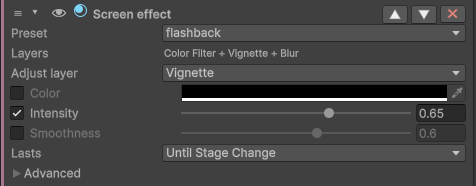
wipeleft, wiperight, wipeup, wipedown | flashback — sepia, vignette and a soft blur |
slideleft, slideright, slideup, slidedown | dream — blur, a lavender tint and a white vignette |
pushleft, pushright, pushup, pushdown | blackscreen |
irisin, irisout, pixellate, zoomin, zoomout |
flashback and dream have several layers. A block that uses them lists the layers and can adjust one of
them, such as only the vignette.
Your own presets: the Effect Library
Your presets live in an Effect Library asset:
- Create one with Create > Beasty VN > Config > Effect Library.
- Assign it in VN Settings > Screen effects > Effect Library.
- Add transitions and effects to it, each with an id.
A preset whose id matches a built-in one replaces the built-in. Transition presets and effect presets
are separate lists: a transition called soft and an effect called soft never collide.
Renaming a preset updates every block that uses it, and rewrites the linked .vnbeasty scripts. When
blocks use the preset, the editor asks first: “The transition preset ‘x’ is used by N block(s). Rename it
to ‘y’ and update every block and linked script?”. Ids cannot be empty or contain spaces.
Skip, auto-forward and rewind
- Advance during a transition finishes it; it does not skip the line.
- Skip finishes transitions and one-shot effects at once.
- Auto-forward starts counting when the transition ends.
- Stepping back cuts straight to the earlier scene. Transitions and one-shot effects never replay on rewind, and the effects that last are worked out for every line, so a rewound line looks exactly as it did.
Saves and leaving the novel
A save remembers the effects that last, and loading rebuilds them. Leaving the novel for free roam or a menu switches the effects off and gives the camera back untouched. They come back when the story resumes.
Reduce flashes and motion
Players can turn on Reduce flashes and motion in the Preferences screen. With it on:
- flashes are capped at 30% opacity and fade more slowly;
- shakes move a quarter as far;
- camera moves are instant.
Transitions do not change. The default for new players comes from VN Settings > Screen effects > Reduce Flashes By Default. Menu prefabs built before this option existed show the toggle after you run Tools > Beasty VN > Setup > Build Default Menu Prefabs again; until then the preference keeps its default.
Trying effects in the Dialogue Preview
The Dialogue Preview shows lasting effects — sepia, tint, vignette, blur, camera zoom — as you step through lines. Click ▶ Play effects to play the current line’s transition and one-shot effects as the game would, starting from the previous line’s scene.
In the text script
Every Effects block has a one-line form in .vnbeasty scripts:
with dissolve
with fade 2s color ffffff hold 0.3s coverui
effect vpunch
effect filter sepia 0.8 until cleared
clear effects
What the validator checks
Tools > Beasty VN > Maintenance > Validate Selected Project reports these as errors:
- a preset that does not exist;
- a
masktransition without a texture.
And warns about:
- two transitions before the same line;
- Until the next line in a node with no line;
- a shake amplitude above 2;
- an effect or fade that covers the dialogue box for more than 3 seconds.
How it renders
The effects need no setup. The BeastyManager creates the compositor it needs at runtime, and it only
works while a transition or a color effect plays; the rest of the time the stage camera draws straight to
the screen. It works on the Built-in render pipeline and on URP. Shakes and camera moves move the stage
camera and put it back.
To add your own transition mode or effect kind from code, see Gameplay APIs.
See also
- Blocks reference — the Effects category.
.vnbeastysyntax — every argument ofwith,effectandclear effects.- Dialogue Preview — ▶ Play effects.
- VN Settings — the Screen effects section.
- Saving and loading — what a save keeps.