

beasty-visual-novel / world / character-screens.md
Character screens
These are the screens the player opens about a character: the cast list, their profile, their stats, their weekly calendar and their quest log. All of them are ordinary uGUI prefabs. You can restyle every one of them, and you can add a tab of your own to the profile.
Adding them
In the editor’s Screens tab, press + Characters. That copies the ready-made prefabs into your project and registers them as secondary screens. From then on they are yours to edit.
The cast list
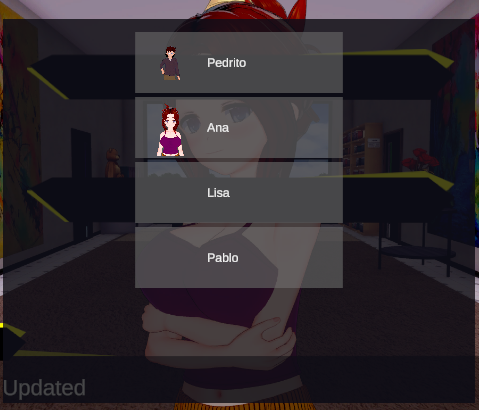
The cast list is one row per character the player may browse. Selecting a row opens that character’s profile.
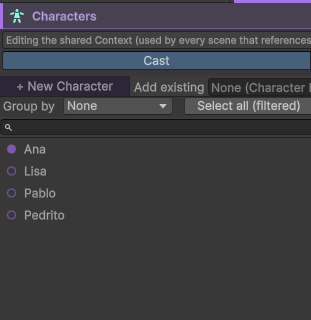
Two settings decide who is on it, and they live on the character (see Characters):
- Listed — off means this character is never on the list, whatever any condition says.
- Shown when — a condition.
By default every character shares one condition, written once. It uses the @self placeholder, which
stands for “the character being tested”:
@self.met == trueEach character is checked against their own met flag, so the cast fills in as the player meets people.
An empty shared condition means everybody is shown from the start.
A single character can opt out of the shared condition and carry its own instead — turn on the per-character override on that character. Use it for the exception, not the rule: the villain who only appears in the list after chapter three.
The list is virtualized — only the rows on screen are drawn — so a cast of a thousand opens instantly.
The profile
The profile is the per-character hub: a header with their portrait and name, and a tab bar underneath that swaps between sections. The first tab is shown when it opens.
The tab bar is extensible. A tab is nothing but a button and a panel: add a button to the bar, add a panel, and add the pair to the profile’s tab list on the prefab. The panel rebuilds itself for the current character when it is shown, so a section of your own — a gallery, a relationship chart, a gift screen — is a panel you write and register, with no engine change.
The shipped tabs are the three below.
The stats screen
The stats screen shows the character’s portrait, name, and a row per field.
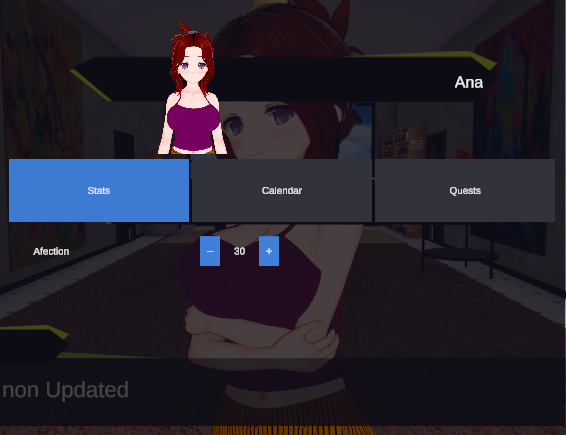
Which fields appear is your decision, field by field: only the ones flagged Show on stats are
listed. Both the universal fields from the Character Variable Schema and the character’s own fields can be
flagged, and one character can override that flag for one universal field — so age can show for
everybody and suspicion for nobody but the detective. See
Characters.
Editable fields are the ones flagged Editable. The player changes them from this screen: + and
- buttons for a number, a toggle for a flag. The step size and the min/max clamp come from the field.
Fields that are not editable are shown read-only.
Two extras, both controlled per character:
- The location line shows the room the character is standing in right now, if their Show current location toggle is on and they are somewhere. Hidden when they are absent.
- The routine button opens the calendar. It is hidden when the character’s Show routine toggle is off.
The routine calendar
The calendar is the character’s schedule, in one of two views, toggled by the player:

- Day view — one row per daypart, for today.
- Week view — the whole week: dayparts down, weekdays across.
Today’s column is tinted, and the current daypart within it is tinted more strongly, so the player can see where they are. A slot where the character is nowhere on the map reads as unknown.
The calendar is only filled in for a character whose Show routine toggle is on. It is a view of the routine rules you authored — see Character routines — not a second copy of them, so it follows the character’s active profile and updates when the story switches it.
The quest log
The quest log is the walkthrough. It lists the character’s active quests: each quest’s title, then its objectives with the hint you wrote for each one.
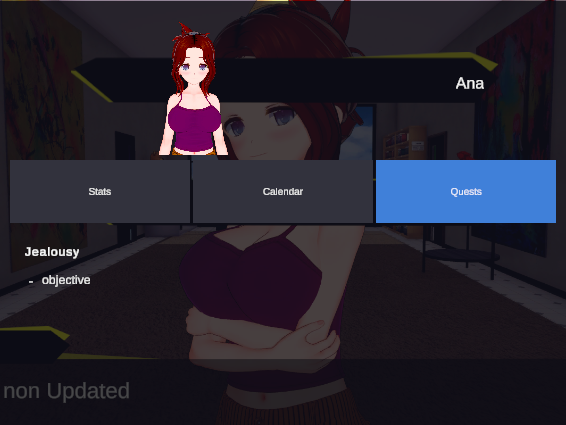
Set the log’s “show global quests” option and, when it is opened with no character selected, it lists the main-story quests instead — the ones with no owner.
Note No spoilers. In an Ordered quest, only the current objective’s hint is revealed. The objectives the player has already done are shown ticked off; the ones still to come stay hidden. Write each hint as though the player is reading it the moment that step becomes their next step, because that is exactly when they will.
A gather-and-deliver objective gets a Deliver button in the log, so the player hands the items over to this character from here. See Quests.
The log is live: an objective completed while the panel is open ticks itself off in front of the player.
How the player gets there
Same as any overlay screen, and both ways work for all of them:
- A HUD button with the action OpenScreen, pointing at the screen’s id. This is the usual way in a free-roam game.
- The Open screen block (palette category World), which opens it from inside the story.
Screens form a stack with automatic Back and Close, so a stats screen opened from the cast list closes back to the cast list. See Screens and HUD.
See also
- Characters — the settings behind every screen on this page
- Screens and HUD — the screen stack, HUD buttons and overlays
- Character routines — the schedule the calendar shows
- Quests — quests, objectives and hints
- UI prefabs — restyling these screens and upgrading them safely