

beasty-visual-novel / world / screens-and-hud.md
Screens and HUD
The money counter in the corner, the clock, the inventory button, the panel that opens when you click it. This page is for writers and designers.
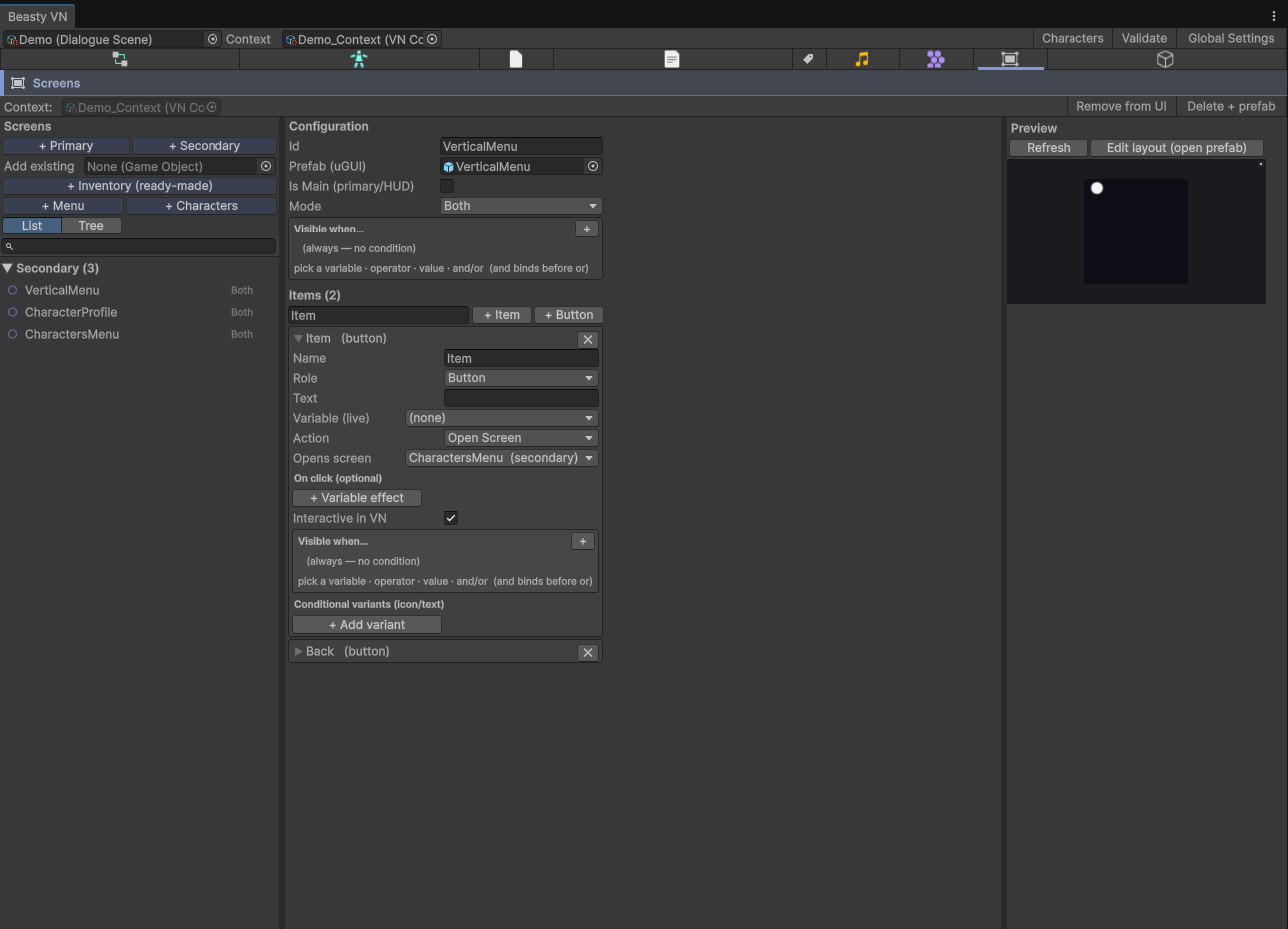
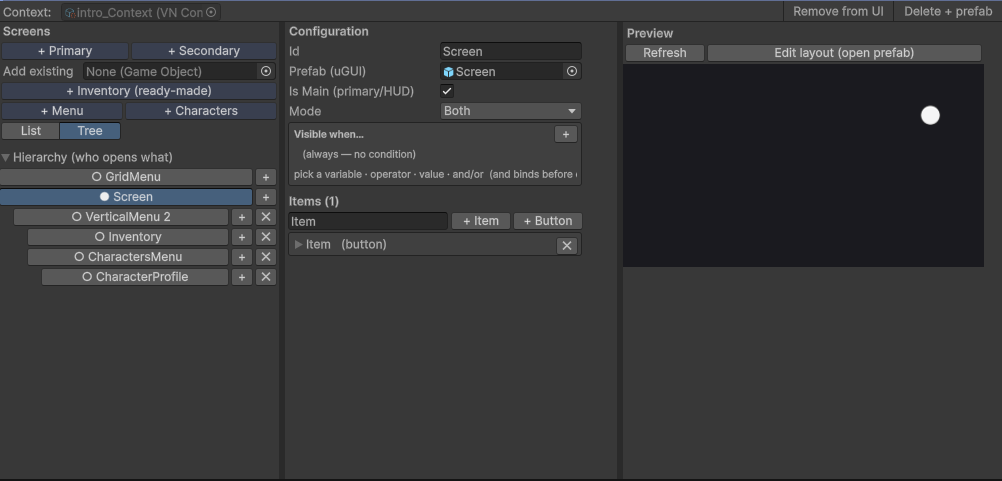
You author screens in the Screens tab of the Beasty VN window (Tools > Beasty VN > Editor). A screen is a
uGUI prefab plus a small record saying what each thing in it means. The prefab owns the look; the record owns
the logic. Same split as rooms.
Two kinds of screen
| Kind | What it is |
|---|---|
| Primary (Is Main) | A persistent HUD. It is on screen whenever its mode and its condition allow. Money, the day, a portrait, a button that opens the inventory. |
| Secondary | An overlay. It is not on screen until something opens it, and it closes again. The inventory, a map, a settings panel. |
Create them with + Primary and + Secondary in the tab’s screen list. There are also ready-made ones: + Inventory (ready-made), + Menu (a grid or a vertical list) and + Characters.
Where a screen shows up
| Field | What it does |
|---|---|
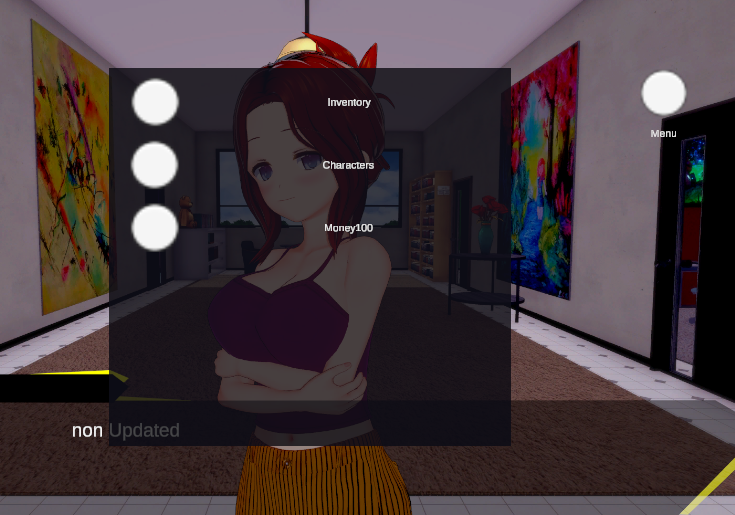
| Id | The stable id. The Open screen block and any button that opens this screen name it by id. Renaming it renames the prefab too. |
| Prefab (uGUI) | The screen’s prefab. |
| Is Main (primary/HUD) | Primary or secondary. |
| Mode | FreeRoam, VisualNovel or Both. |
| Visible when | A condition. Empty = always (within its mode). |
Mode is the coarse switch: a money counter is usually Both; a “travel to another room” button is
FreeRoam; a “recap” panel might be VisualNovel only. Visible when is the fine one: show the stamina bar
only after the tutorial, hide the clock indoors.
A primary screen is shown when its mode matches the current app state and its condition passes. Both have to agree.
Items
An item is one thing inside the screen: an icon, a label, a button. An item is named after an object in the prefab — the record and the prefab element are matched by name, so you never type an id.
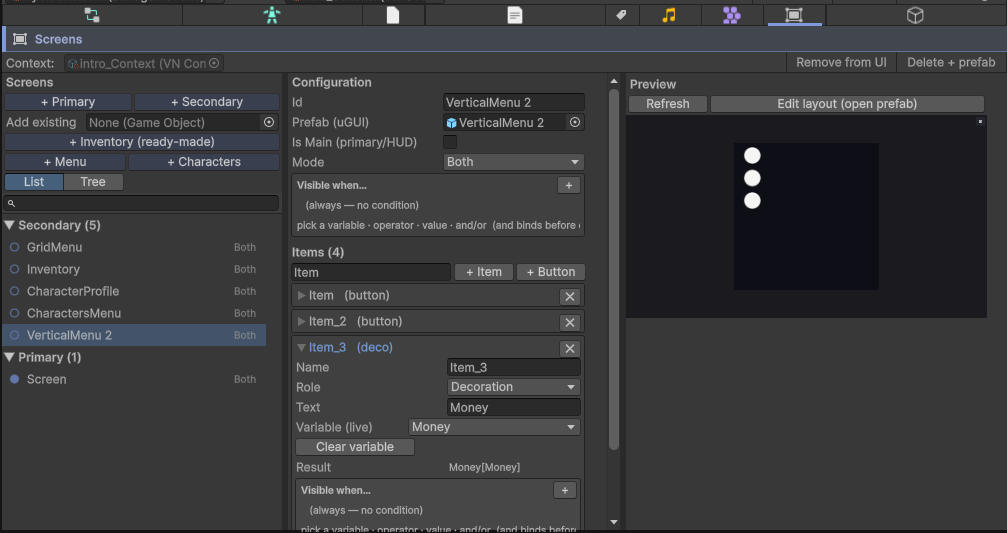
Add one with the name field plus + Item (decoration) or + Button (interactive). The tab creates the element inside the prefab for you and adds its record. Renaming an item renames both sides.
| Role | What it is |
|---|---|
Decoration | Not clickable. Shows art and/or a label. |
Button | Clickable: hover feedback plus an action. |
Every item, whatever its role, has:
- Text — fixed label text. May be empty.
- Variable (live) — a variable whose current value is appended to the text, and kept up to date at
runtime. This is the live money counter: Text =
Money:, Variable =gold, and the label readsMoney: 120and changes the instant the player earns a coin. Any variable works, including the reserved ones — picktime.dayand you have a day counter; picktime.daypartand you have the time of day. - Visible when — a condition. Empty = always shown.
- Conditional variants (icon/text) — an ordered list of cases. Each case has a condition, an optional icon and an optional text. The first case whose condition passes wins; if none does, the item’s base icon and label apply. A case that only sets an icon keeps the base label, and vice versa.
Cases are how one item says several things. A weather icon that changes with the season. A portrait that changes with affection. A door icon that shows a padlock while the shop is closed.
Actions
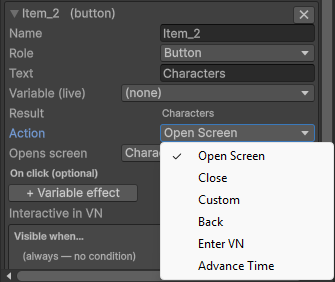
A Button item has one action:
| Action | What it does |
|---|---|
OpenScreen | Opens a secondary screen (you pick which). |
Close | Closes the whole secondary stack at once. The “exit” button. |
Back | Goes back one level: re-shows the parent screen, or closes the overlay if it is the top level. |
Custom | Raises a custom event id for your own script to handle. |
EnterVN | Enters a visual novel scene, optionally at a specific node. The overlay stack closes and the dialogue plays. |
AdvanceTime | Changes the game clock, with the same operations as the Advance time block. A “wait” or “sleep” button. It needs a Time Config on the BeastyManager. |
Click effects
Independently of the action, a button can carry On click variable effects: gold Subtract 10,
stamina Subtract 1, flag_visited Toggle. They are applied before the action runs. A button can charge
the player and then open the screen.
Interactive in VN
A button on a screen whose mode includes VisualNovel has one extra toggle: Interactive in VN. Turn it off
and the button is still visible during dialogue but does not respond. Use it to keep a HUD readable during
a scene without letting the player wander off mid-conversation. In free roam a button is always interactive;
the toggle is not offered there.
The secondary stack
Secondary screens form a stack. Opening one from another pushes it and hides its parent, so only the top overlay is on screen. Back pops one level and re-shows the parent; Close dismisses the whole stack.
You get this without wiring it: every secondary screen is given a Back button automatically when it is
created — a top-right element with the Back action. Clicking outside the panel also closes the overlay, and
while any secondary screen is open a blocker sits behind it, so a click meant for the overlay never leaks
through to the room underneath. Secondary screens are modal.
The open stack is part of the save, so a player who saves with the inventory open reloads with the inventory open.
Opening a screen from the story
The Open screen block (palette category World) opens a secondary screen by id from inside a node. Use it to show the player the map when the story hands it to them, or to pop the inventory open the first time they pick something up.
[Dialogue]     "The old man presses a folded map into your hand."
[Open screen]  screen = map
In the text script:
screen mapThe block is presentation only — it opens the overlay, and the player closes it like any other. There is nothing to restore on rewind.
Preview
The Screens tab previews the selected screen’s prefab beside its settings. Edit layout (open prefab) takes you to the prefab to move things around; Refresh re-renders the preview. The Hierarchy (who opens what) foldout shows the tree of screens and which button opens which — and lets you add or unlink a child screen without hunting for the button that does it.
See also
- UI prefabs — restyling every screen, and upgrading the shipped prefabs.
- Character screens — the ready-made cast list, profile, stats, calendar and quest log.
- Items and inventory — the ready-made inventory screen.
- Variables and conditions — what a live label and a case condition can read.
- Game time — the AdvanceTime action’s operations.