

beasty-visual-novel / production / audio-and-music.md
Audio and music
Sound comes in two layers: cues the story fires from a block, and a background music queue that follows the player from the main menu into the story and out into the world. This page covers both, and the mixer they run through.
The four channels

| Channel | What it carries |
|---|---|
| Music | The soundtrack: the background queue and any music cue from a block. |
| Ambient | Looping atmosphere: rain, a crowd, a forest. |
| Sfx | One-shots: a door, a hit, a UI click. Overlapping SFX do not cut each other off. |
| Voice | Voice lines. A new line stops the previous one. |
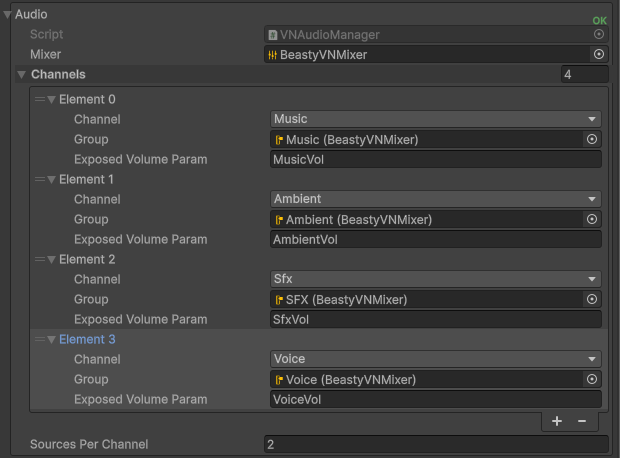
Every channel routes through the shipped BeastyVNMixer AudioMixer, which has a group per channel under a
Master group. The player’s volume sliders in the preferences screen drive the mixer’s channel volumes, and a
block’s own volume sets the source volume, so the two compose: a quiet cue stays quiet relative to whatever the
player chose.
Each channel owns at least two AudioSources — Unity’s sound players — which is what lets music and ambience crossfade instead of cutting.
Note If you leave a mixer group unassigned the manager still plays the sound; it just does not route that channel through the mixer, so the player’s slider for it does nothing. Use the shipped mixer unless you have a reason not to.
The audio blocks
These are the blocks you drop into a node. Full details in the blocks reference.
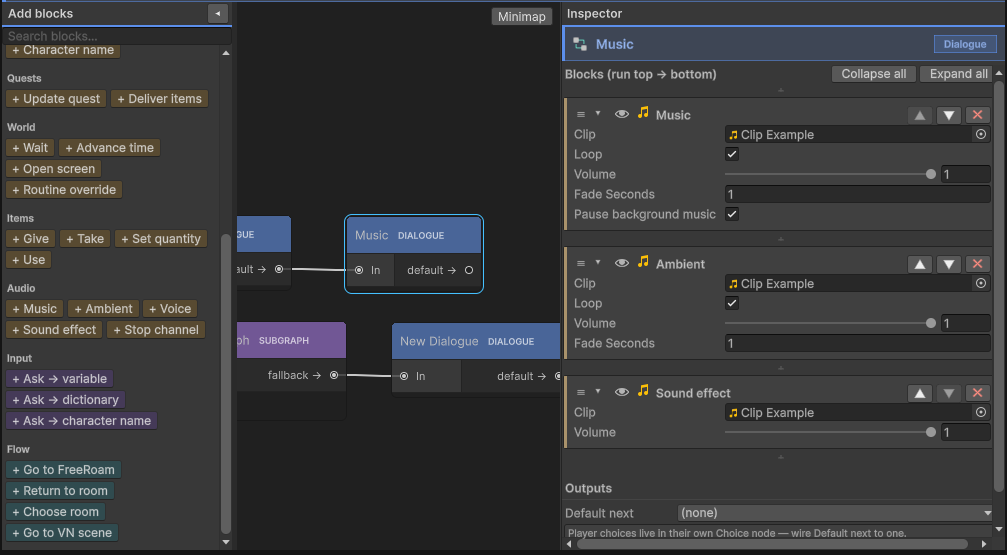
| Block | What it does |
|---|---|
| Music | Plays a clip on the Music channel: clip, loop, volume, fade, and whether to pause the background queue. |
| Ambient | Plays a clip on the Ambient channel: clip, loop, volume, fade. |
| Voice | Plays a voice clip: clip, volume. |
| Sound effect | A one-shot on the Sfx channel. |
| Stop channel | Stops Music, Ambient, Sfx or Voice, with a fade. |
Music and Ambient crossfade: the new clip fades in as the old one fades out, over the block’s fade time. A fade of 0 swaps instantly.
Warning A block with no clip assigned does nothing — it is skipped, and whatever was playing keeps playing. To silence a channel on purpose, use Stop channel.
Background music per app mode
The persistent soundtrack is authored once, in a Music Config asset
(Create > Beasty VN > Config > Music Config), and edited in the Music tab of the Beasty VN window. It
holds one queue per top-level app mode — the part of the game the player is in:
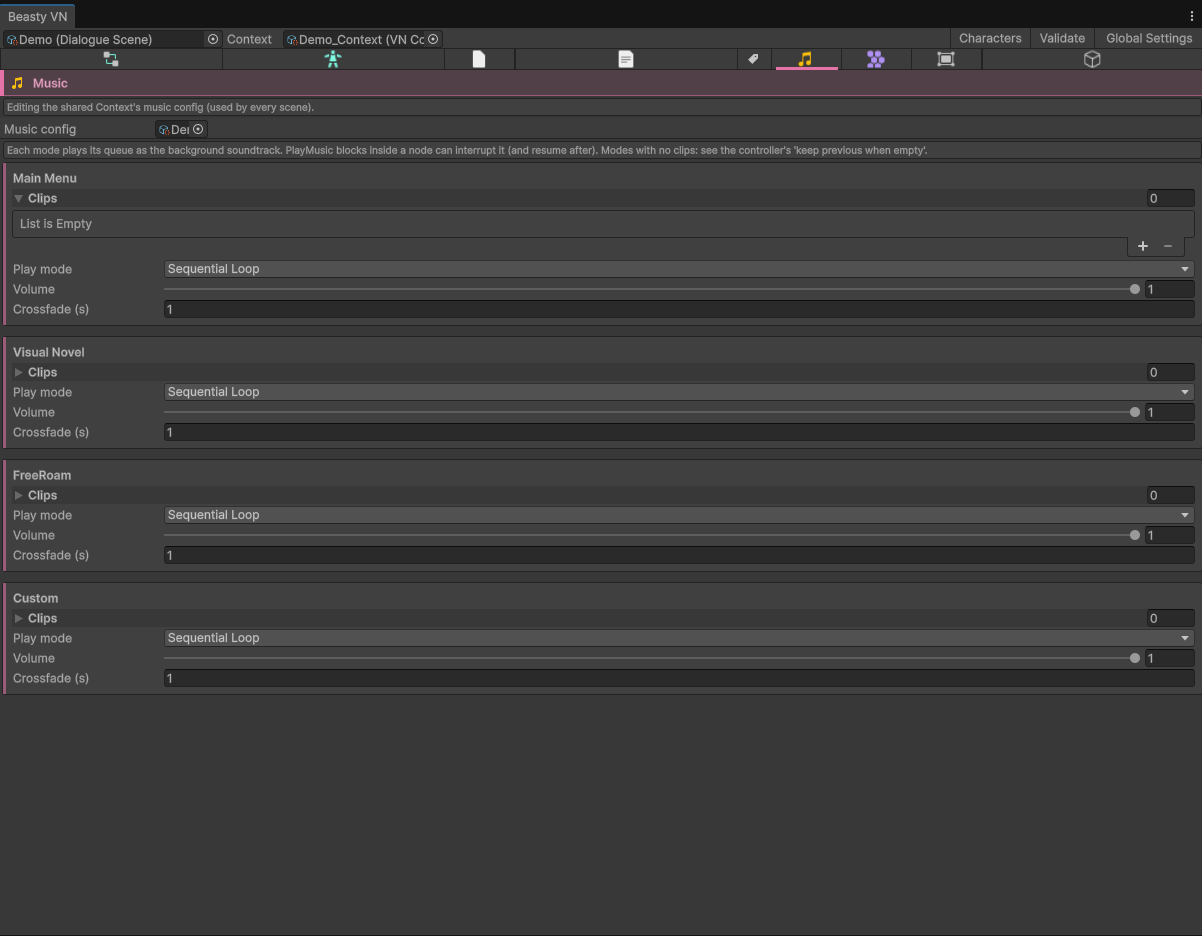
| Queue | Plays while |
|---|---|
mainMenu | The player is in the main menu. |
visualNovel | The visual novel is running. |
freeRoam | The player is walking around rooms. |
custom | Your own Custom app mode is active (Custom mode). |
Each queue has four fields:
| Field | Meaning |
|---|---|
clips | The clips, in order. An empty queue means “no background music here” — entering that mode fades the music out. |
mode | How they are sequenced. |
volume | The queue’s own volume (0-1), composed with the player’s Music slider. |
crossfadeSeconds | The crossfade when the queue starts, and between its tracks. |
The play modes:
| Mode | Behaviour |
|---|---|
SequentialLoop | Play the clips in order, then start again. |
SingleInfinite | Play only the first clip, looping forever. |
Shuffle | Play in random order, reshuffling each cycle. |
Once | Play the clips once in order, then stop. |
The controller listens to the app mode and plays the matching queue. Re-entering a mode that is already playing its queue does not restart it — walking through a house whose rooms share the same music does not jump the track back to bar one.
An empty queue means silence. Entering a mode whose queue has no clips fades the previous mode’s music out instead of letting it play on — clips assigned only to the main menu do not keep sounding over gameplay. To deliberately carry the previous music across a mode change, enable Keep Previous When Empty on the controller, in the Beasty Manager inspector under the Background Music foldout.
Overrides: a room, or a story
Two things can replace the mode’s queue:
- A room. A room prefab’s
FreeRoamRoomcarries amusicOverridequeue. Enter that room and its music takes over; a room with no override plays the free-roam mode queue. See Free-roam rooms. - A story. A
DialogueScenecarries amusicOverridequeue. Enter that visual novel and it takes over from the mode’svisualNovelqueue.
An override with no clips is not an override: the mode queue applies.
Pausing the background for a scene’s own track
A Music block has a pause background flag, on by default. When the block fires, the persistent queue steps aside and the cue owns the Music channel for as long as the scene needs it. When the story moves on to a node that does not have a pausing cue, the background queue resumes on its own — you do not have to remember to restart it.
Turn the flag off when you want the cue to simply replace the music without the background layer ever coming back.
See also
- Blocks reference — every block, including the audio ones, field by field.
- Free-roam rooms — where a room’s music override lives.
- UI prefabs — the mixer prefab and the preferences screen with the volume sliders.