

beasty-visual-novel / authoring / text-script.md
The text script
Write a whole scene as a plain-text file instead of clicking nodes together. The .vnbeasty format is a
Ren’Py-like script that stays in two-way sync with the story graph. This page is for the writer who would
rather type. For the exact grammar of every line, see the
.vnbeasty syntax reference.
What it is
One .vnbeasty file is one scene: one DialogueScene and its root StoryGraph. Every label in the file
is a node in the graph, and jump wires the nodes together. Everything you can put inside a node — a line
of dialogue, a backdrop, a character, a music cue, a variable change, a choice — has a one-line text form.
The two views are equal in power: anything the graph can express, the script can write, layered backdrops and props included, talk-menu nodes included, down to the portrait a character shows in the dialogue box and the stage slot the sprite stands on. Nothing is graph-only.
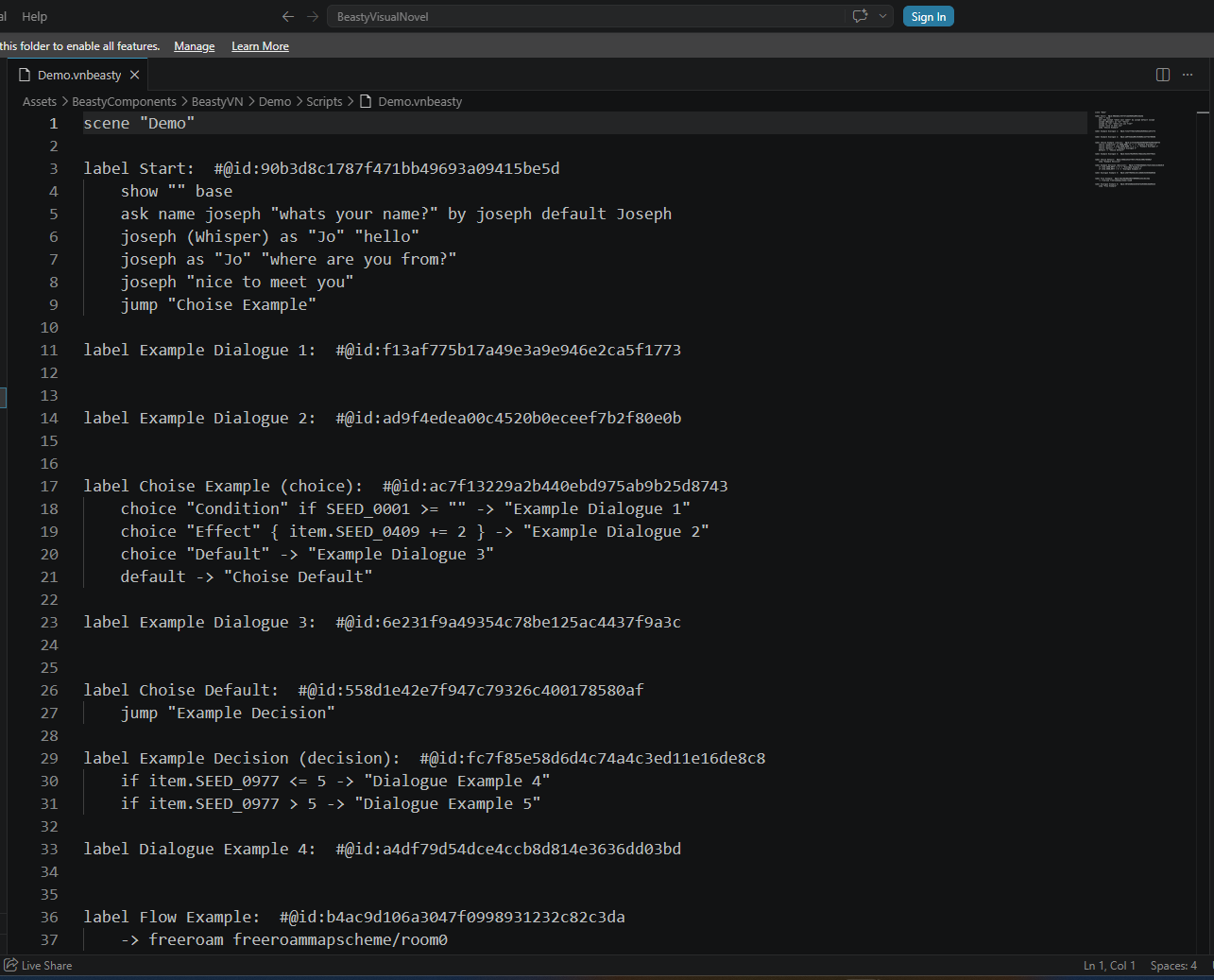
label intro:
    backdrop bedroom
    juan "Hello, how are you?"
    jump cruce
That is a Dialogue node called intro holding three blocks: a Backdrop block, a Dialogue block, and a wire
to the node called cruce. The same node, drawn in the graph, is the same data.
Why you would use it
- You write at the speed you think. A page of dialogue is a page of typing, not fifty clicks into fifty fields.
- A writer and a designer can work at the same time. The writer edits the script in their own text editor; the designer keeps building nodes in the graph. Both sides are the same scene, and the sync rules below say exactly who wins when they collide.
- Text diffs. A script file is readable in a code review, in a version-control diff, and in a search.
You do not have to choose one and stay there. The two views are the same scene, and you can switch back and forth mid-chapter.
Turning it on
Open Tools > Beasty VN > Editor, go to the Story tab, and use the Graph / Text toggle at the top
left. The first time you open Text for a scene that has no script yet, the tab offers a single button:
- Create script from graph — writes the current graph out as a
.vnbeastyfile, links it to the scene and opens it for editing. The file lands in aScriptsfolder beside the scene asset, named after the scene.
If the graph ever holds something the text format cannot express, the button tells you so instead of creating a half-true file. See The safety contract.

The Text tab
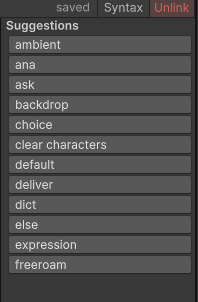
The editor is a code surface with line numbers, syntax colouring, and a Suggestions panel on the right that completes what you are typing: the keyword at the start of a line, then the thing that keyword expects — a character id, an expression key, a portrait key, an anchor, a variable, a dictionary token, an item, a quest and its objectives, a screen id, a routine profile, a daypart or weekday name, a backdrop or audio asset name, or one of the labels already in the file. The suggestions are read live from the project, so a character you added a minute ago is already there. Click a suggestion to insert it.
Header lines complete too: at column 0 the panel offers the node-kind keywords (label, choice,
decision, subgraph, return, talkmenu, flow) plus scene and start; after start it offers
the script’s labels, and after talkmenu the character ids for its (<character>) argument. Header
keywords are highlighted in the colour their node kind has in the graph, and the Syntax cheat sheet
shows the header forms.
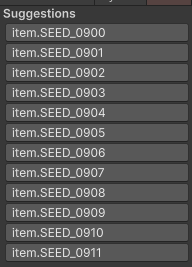
Where a condition or an effect goes, it offers the whole variable catalog — your own variables, character
fields written maya.affection, item.<id> counts, dictionary tokens and the reserved @time: and
@quest: keys. It is the same list the graph’s condition picker shows, so you are not left guessing how a
key is spelled when you leave the graph.
Tab inserts four spaces. The arrow keys move the caret. Ctrl+Z and Ctrl+Y drive the editor’s own undo
stack.
The toolbar:
| Button | What it does |
|---|---|
| Save & apply | Applies your text to the graph, then writes the file. This is the only thing that moves text into the graph. It turns amber while you have unsaved edits. |
| Format | Applies your edits, then rewrites the file in canonical form — sorted, indented, with the node-id annotations refreshed. |
| Syntax | Toggles a quick syntax cheat sheet beside the editor. |
| Unlink | Stops using the script. The graph stays as it is, and the .vnbeasty file is left on disk. |
Save & apply is undoable. One Ctrl+Z — in Unity, not in the text editor — restores the entire graph,
its nodes and the localization texts to their pre-import state. Format, linking a script and Unlink
are undoable too. Automatic imports (saving the .vnbeasty file in an external editor) are the exception:
Unity does not allow undo registration during an asset import, so Ctrl+Z cannot revert them. Their
safety net is the timestamped .bak backup described under The safety contract.
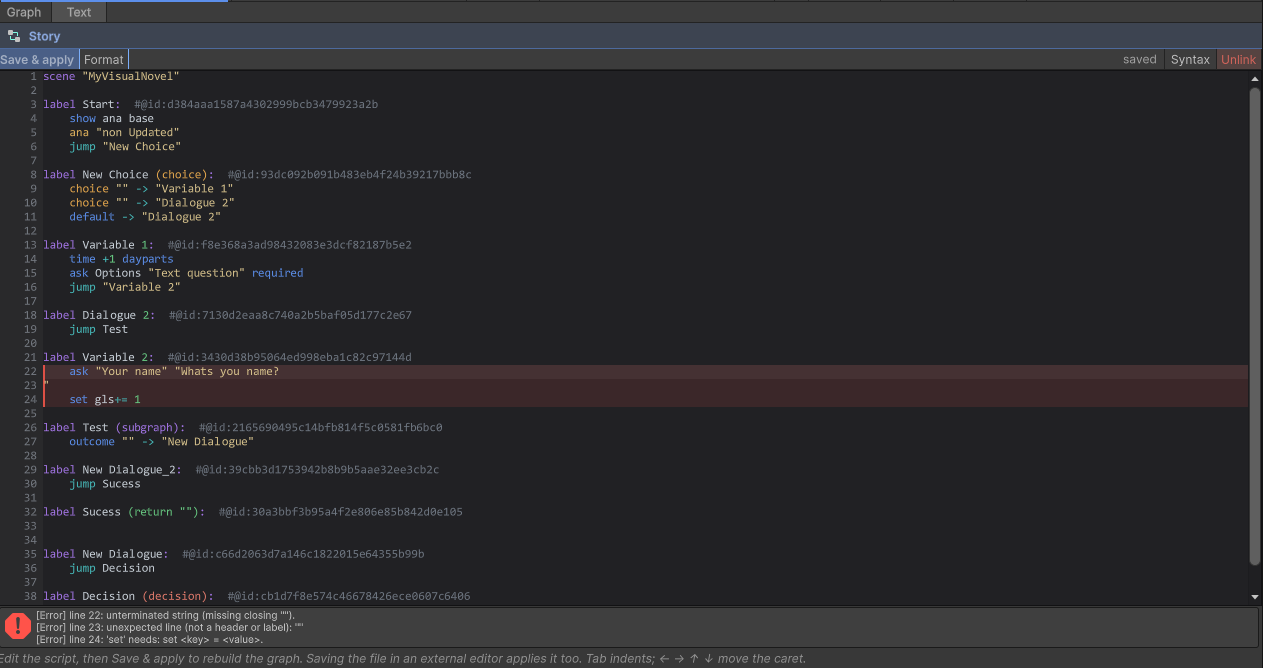
Under the editor, a report box shows the result of the last import: what was applied, what was refused, and the line number of the offending statement. Warnings land there too — a name that does not match anything the project declares is listed with its line, without stopping the import.
How the two stay in sync
The two directions are not symmetrical, on purpose.
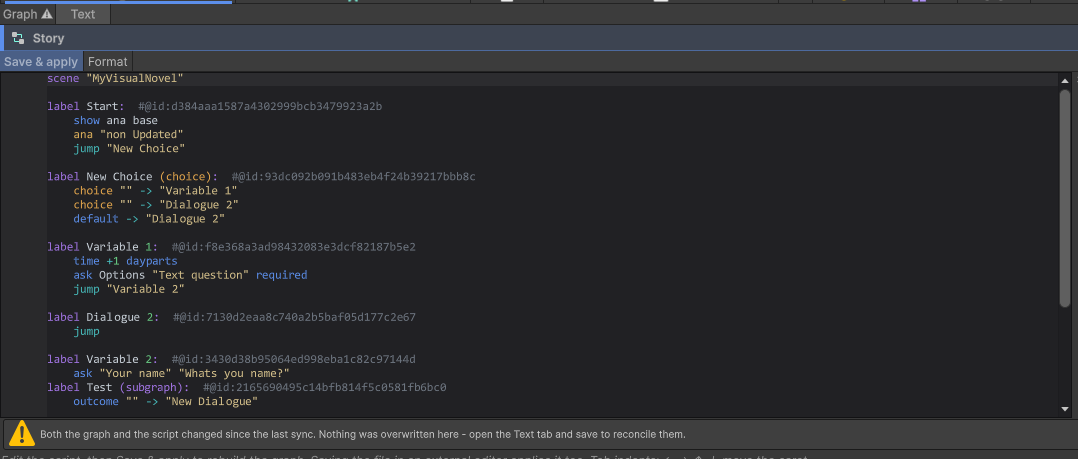
Graph to text is automatic. The file is kept as a live mirror of the graph. Edit a node in the graph and the script is rewritten for you; open the Text tab and you always see the current graph. Format forces the same rewrite by hand.
Text to graph is manual. Nothing you type touches the graph until you press Save & apply. That is what makes an unfinished paragraph safe.
Saving the file in an external editor applies it too. Open the .vnbeasty in VS Code, or any editor,
write your scene, save. Unity picks the file up on the next import and runs the same text-to-graph import
that Save & apply runs, under the same rules. You do not have to come back to the Text tab.
When the two diverge. If both sides changed since the last sync, the Story tab labels its first toggle
button with a warning marker (Graph ⚠) instead of Graph, so you notice before your next edit overwrites
the other side. Nothing has been overwritten at that point — the automatic mirror deliberately refuses to
pick a winner between two edits a human has not reconciled. Open the Text tab, look at the script, and save
when you are happy with it. The standoff only holds until one side is saved: the moment you save the
.vnbeasty file in an external editor, the import runs, the script wins, and the graph’s previous state is
written to a .bak backup — see The safety contract.
The safety contract
This is the part worth reading twice. The whole feature is built so that a text file can never quietly destroy authoring work.
- The graph is the source of truth. The script is a projection of it. Every rule below follows from that one.
- A script that does not parse never reaches the graph. The import is refused, the graph is left exactly as it was, and the offending line is reported with its line number. Your text is still saved to the file, because a typo must not throw away the paragraph you just wrote — but the nodes do not move.
- An empty script never silently wipes a scene. A file with no labels would delete every node. From the Text tab you get a confirmation dialog naming the number of nodes at stake. From an automatic import (a file saved outside Unity, a version-control pull) there is nobody to ask, so the import is refused outright.
- A script holding something the text format cannot express is refused. The two views are at parity today, so this should never fire — but the check stays: if the graph ever contains content that cannot be written back out as text, the file on disk is not a faithful mirror of the graph, and applying it would delete exactly the content the writer could not express. The import aborts and says so.
- A name that does not resolve is an error. A misspelled backdrop, an audio clip whose name matches two
assets, a
jumpto a label that does not exist, agoto-sceneto an unknown scene — each of these refuses the import and points at the line. A typo can never destroy a reference by silently clearing it. (An ambiguous name tells you which assets matched, so you can disambiguate with a subfolder:backdrop interiors/bedroom.) - Any import that would lose content leaves a backup. Before an import that deletes or rewrites nodes,
the graph’s current state is written next to the script as a timestamped file:
MyScene.vnbeasty.2026-07-13-142530.bak. It is a.vnbeastyprojection of the graph you overwrote, so you can read it, and you can paste it back. Every destructive import gets its own backup file: two bad saves in a row cannot leave you with only the degraded copy. If the backup cannot be written — a read-only folder, a full disk — the import is refused rather than performed without a safety net. - If both sides changed since the last sync, the most recent save wins. Saving the
.vnbeastyfile is what triggers the import, so the script is kept and the graph’s previous state goes to the.baknext to the file. The report box tells you which side was kept and where the backup is. - Assets resolve by GUID. The name in the script is how you find the asset; the node stores the asset
itself. Move
bedroom.pngto another folder, or rename it, and the synced node still points at it. Run Format to refresh the name written in the text.
The limits
Said plainly, so you do not find them the hard way.
- Configuration is not authored in the script. Characters, variables, the dictionary, items, quests,
screens and localization live in the visual windows — the Characters, Variables, Dictionary, Items and
Localization tabs. The script only references them by name. Writing
set gold = 10does not create a variable calledgold; it uses the one you defined. A name the project does not declare — a speaker who is not in the cast, a variable, an item, a quest, an objective or a screen id that does not exist — is reported as a warning with its line number. The import still goes through: the name may be one you are about to create. But you are told, so a typo does not quietly become a key nothing else in the project uses. - A block with no asset assigned is not written to the script. An empty Backdrop block, or a Music
block with no clip, does nothing in game — it is skipped, leaving whatever is already on screen or
playing. Because it does nothing, it has no text form, so saving the script removes that placeholder from
the graph as well. You are told before it happens. To blank the backdrop or silence a channel on purpose,
write
backdrop clearorstop music. - One file is one scene. A
.vnbeastyfile covers a singleDialogueSceneand its root graph, subgraphs included. Move to another scene withgoto-scene. - Subgraphs nest one level. A
subgraphnode owns child labels namedparent/child; those children cannot themselves be subgraphs.
A worked example
Here is a complete scene, written from scratch as text. Nothing in it exists in the graph yet.
scene "The Bakery"
start morning

label morning:
    backdrop bakery
    music calm fade 2
    show maya base at left
    "The smell of bread reached the street."
    maya "You're early today."
    maya (whisper) "The first loaf is always the best one."
    set trust += 1
    jump offer

choice offer:
    choice "Buy a loaf" if gold >= 3 { gold -= 3, has_bread = true } -> bought
    choice "Just looking" -> polite
    default -> polite

label bought:
    give 1 bread
    maya (happy) "Enjoy it."
    hide maya
    jump leave

label polite:
    maya as "The Baker" "Come back when you're hungry."
    jump leave

label leave:
    -> freeroam town/square
Press Save & apply, and the graph now holds five nodes:
- morning — a Dialogue node. Its blocks, top to bottom: a Backdrop block set to the
bakerysprite; a Music block with thecalmclip and a two-second fade; a Show character block putting Maya on the left in herbaseexpression; a narrator Dialogue block; two Dialogue blocks spoken by Maya, the second one in thewhisperdelivery state; and a Set variable block adding 1 totrust. Its default next node is offer. - offer — a Choice node with two options and a fallback. The first option is gated on
gold >= 3; when the player picks it, it subtracts 3 fromgold, setshas_bread, and routes to bought. The second routes to polite. If every option is gated out — the player is broke — thedefaultroute sends them to polite anyway. - bought — a Dialogue node: a Give block for one
bread, a line from Maya in herhappydelivery state, a Hide character block. Then on to leave. - polite — a Dialogue node with one line, shown under the alias “The Baker” instead of Maya’s name. Then on to leave.
- leave — a Flow node, because its only line is an arrow exit. It hands control out of the visual
novel and drops the player into the
squareroom of thetownmap.
scene "The Bakery" is the readable name of the scene, and start morning names the entry node — the node
playback begins at. Switch to the Graph view and the five nodes are there, wired, ready to be moved
around, previewed, and edited by someone who never opens the text file.
See also
- .vnbeasty syntax reference — every construct, for lookup.
- The story graph — the canvas and the node types the script compiles into.
- Blocks reference — every block, by category.
- Choices and decisions — conditions, effects and routing in the graph.
- Subgraphs — nesting a graph and routing its outcome.
- Variables and conditions — where the names in
setandifcome from. - Localization — the authoring language selector, and where a line’s text is actually stored.