

Visual Novel › World
Layered expressions
An expression is how a character looks on stage. A Single expression is one finished image. A Layered expression is assembled from parts: a base sprite plus any number of layers on top — eyes, a mouth, blush, a raised hand. Ten expressions can share one body this way, and layers are what makes the wardrobe possible.
This page is for whoever builds the characters. Expressions themselves, portraits and the default expression are covered in Characters.
Single or layered
Every expression has a mode:
- Single — the default. It draws one sprite, exactly as expressions always have. Existing projects do not change.
- Layered — a base sprite plus layer parts.
The mode belongs to each expression, so one character can mix both. Switching an expression back and forth keeps the data of both sides: turn a layered expression into a single one and back, and its layers are still there.
Creating a layered expression
In Characters › Cast, press + Add expression. It asks for a name first, then for the mode:
- Single sprite — one finished image, picked right in the Cast list.
- Layered (open Expression Composer)… — creates the expression and opens it in the Composer.

A layered row shows a thumbnail, Layered · N layers and an Edit in Composer… button. Each row’s ⋮
menu offers Switch to Layered — which offers the current sprite as the base when there is none yet — and
Switch to Single sprite.
The Expression Composer
The Composer is the editor for layered expressions and wardrobes. Open it with Edit in Composer… or Wardrobe… in Cast, or from Tools > Beasty VN > Expression Composer. It draws the character exactly as the game does.
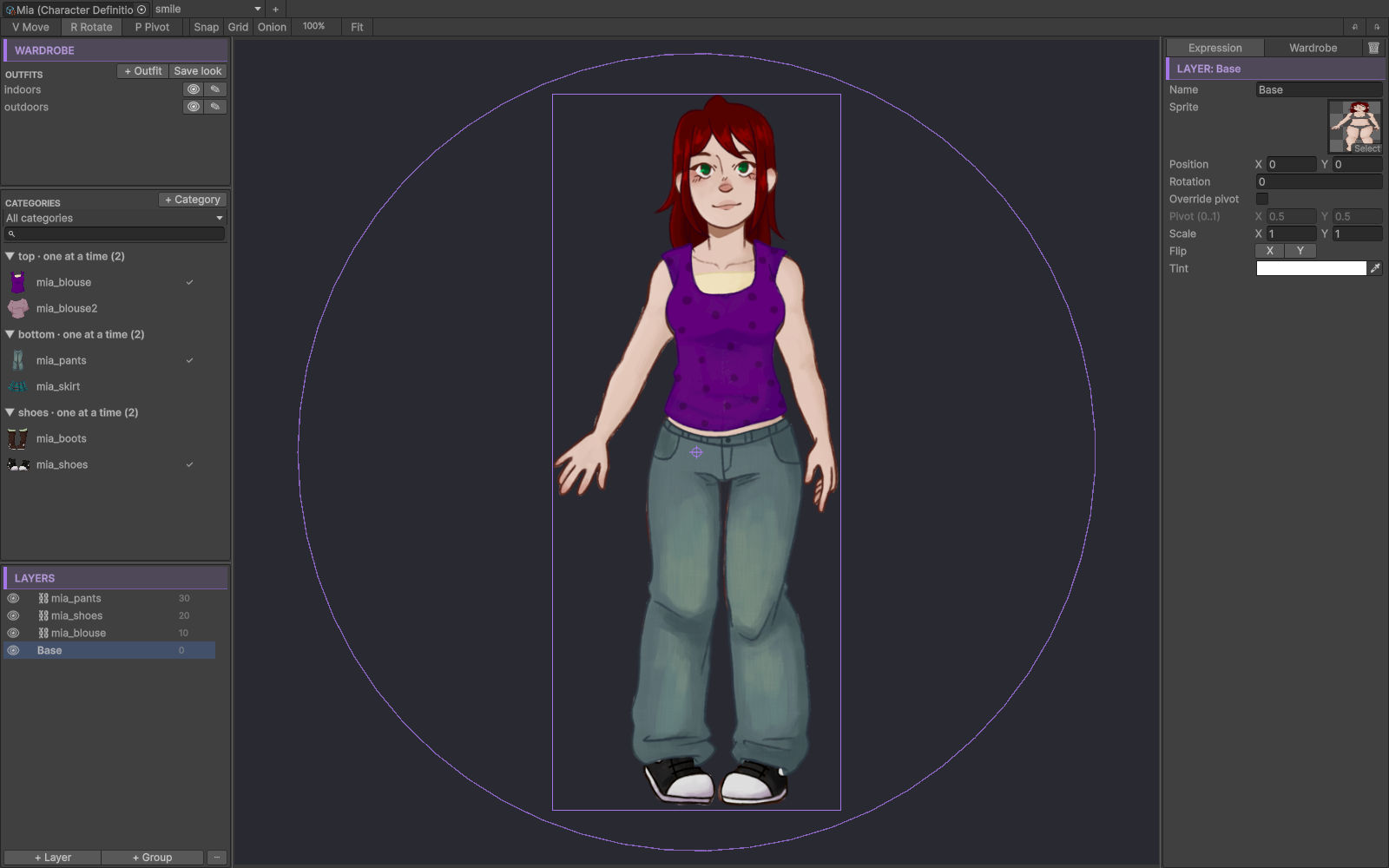
It has three panes, resized with dividers. Their widths are remembered.
- Left — the outfits, the wardrobe categories and the layer tree, each in its own box. Drag the dividers between the boxes up and down; their heights are remembered too.
- Canvas — the character, as the game draws it.
- Inspector — two tabs. Expression edits this expression: its base, its own layers and the expression card. Wardrobe edits the clothes, explained in Wardrobe and outfits.
A trash button in the inspector deletes the selection.
Layers and parts
Each layer part has its own:
| Setting | What it does |
|---|---|
| Sprite | The image of this part. |
| Parent | Another part this one is attached to, by id. Moving the parent moves the child. |
| Rotation, Scale | Its own rotation and scale. |
| Pivot override | Rotate around a point other than the sprite’s pivot. |
| Flip X, Flip Y | Mirror the part. |
| Tint | A color multiplied over the sprite. |
The layer list is the draw order: a layer higher in the list draws in front. The order does not depend on the parent-child hierarchy, so a child can sit behind its parent — a hand behind the head it is attached to.
Groups (+ Group or Ctrl+G) fold in the tree and move, rotate and hide everything inside them. Ctrl+Shift+G ungroups. A group has no sprite of its own.
Manual depth is optional. Switch it on to type a depth yourself; the automatic number shows in grey next to it.
Working on the canvas
| Gesture | Effect |
|---|---|
| Click | Selects the visible layer under the cursor. Transparent pixels click through. |
| Alt+click | Cycles through the layers stacked under the cursor. |
| Shift+click | Adds to the selection. Values that differ show — in the inspector. |
| V, R, P | Move, rotate and pivot tools. With one layer selected, the ring always rotates. |
| Shift while dragging | Snaps rotation to 15°, and movement to the grid when Snap is on. |
| Arrow keys | Nudge 1 px; with Shift, 10 px. |
| Mouse wheel / middle button | Zoom / pan. |
| Onion | Draws the default expression faintly underneath, to line parts up. |
The layer tree
Drag a layer to reorder it. Drop it onto a group or another layer to put it inside; drag it below and to the left to take it out. Esc cancels the drag, and the tree scrolls when you drag near its edges. Right-click a layer to see every action with its shortcut.
Drag and drop from the Project window
- Sprites dropped on the canvas become layers. The first one can become the base.
- Sprites dropped on a wardrobe category header become one piece per sprite.
- Sprites dropped on a piece become its parts.
Keyboard shortcuts
Shortcuts work with the focus on any pane: tree, canvas, list or inspector. A text field you are editing keeps its own keys.
| Shortcut | Action |
|---|---|
| Delete / Backspace | Remove the selection. In the wardrobe list it removes the selected outfit, piece or category, after the same confirmation as its menu. |
| Ctrl+D | Duplicate. |
| Ctrl+A | Select all. |
| Ctrl+G / Ctrl+Shift+G | Group / ungroup. |
| F2 | Rename. |
| Esc | Cancel; pressed again, clear the selection. |
| F | Frame the selection on the canvas. |
| H | Hide a layer in the editor only. The game still draws it. |
| Ctrl+] / Ctrl+[ | Move a layer in front / behind. |
On macOS, Cmd replaces Ctrl. Everything is undoable: every Composer and Cast operation is one Ctrl+Z / Ctrl+Y step, and a drag or a rotation with the mouse is a single step.
The expression card
With nothing selected, the Expression tab shows the expression itself:
| Field | What it does |
|---|---|
| Name | Renames the expression, and every block and script that names it, in one Ctrl+Z step. A confirmation counts them first. The same rename works from Cast. |
| Layered / Single sprite | The mode. |
| Default outfit | What the character wears in this expression while the story has not touched those clothes. See Wardrobe and outfits. |
| Show wardrobe on this expression | Whether clothes draw on this expression at all. |
| Hidden here | Wardrobe categories this expression never shows. |
Ids
Layers and parts get an id generated from their name. The id shows in grey under the name; its ✎ button
edits it. Renaming an id re-points everything that names it, in one undo step. Renaming a layer moves the
wardrobe anchors that name it only when no other expression still has a layer with that id; the
confirmation says how many stay. base is reserved for layers and parts.
On stage and in free roam
- On stage, a layered expression draws exactly as in the Composer.
- In free roam, a character with no Free Roam Sprite whose default expression is layered shows its layered look. Clicking any part triggers the character, and hover tints every part. A Swap sprite hover falls back to a tint on layered characters.
- A pose placed by hand in a room prefab, with no sprite of its own, shows its owner’s layered look: the default expression with the clothes worn at that moment. It is clickable on any part and tinted on hover. A sprite of its own, a conditional sprite that applies, or an idle animation still wins. The pose’s inspector in the FreeRoam section says what the pose will show, and offers Edit look in Composer….
A missing piece never breaks the scene. A layered expression without a base sprite draws what exists and logs a warning once.
Streamed projects
With streaming on, a part that has a streamed address is loaded only when it is shown — never the whole wardrobe — and released with the rest of the scene’s art. A part that leaves the screen drops its sprite.
A Single expression that changes, and a layered part that stays the same part, keep showing their current art until the new art loads, so they do not blink. Switching an expression between Single and Layered, or replacing a part with a different one, can show nothing for a moment while the new art streams in.
What the validator checks
Tools > Beasty VN > Maintenance > Validate Selected Project reports:
- a layered expression without a base;
- a parent that does not exist, or parents that form a loop;
- an empty, duplicate or reserved id;
- a group that has a sprite;
- parts that draw next to a layer no expression has.
It warns when a character references more than 64 different sprites directly across its layered expressions and wardrobe, and suggests streamed content.
For scripters: how a character is built on stage
Each CharactersRoot/Character_N object on the stage is a CharacterLookView with a SortingGroup and one
Part_i/Sprite child per part. A Single expression has exactly one, Part_0/Sprite. Flipping a character
mirrors the whole Character_N with a negative X scale.
If a script of yours reached into Character_N’s SpriteRenderer, look under it instead
(Character_N/Part_0/Sprite). Code that read SpriteRenderer.flipX should read the sign of
Character_N’s localScale.x.
See also
- Wardrobe and outfits — clothes on top of layered expressions.
- Characters — expressions, portraits and the default expression.
- Dialogue and stage — showing a character and changing their expression.
- Streaming — loading art only when it is shown.
- Validation and ids — the validator and id renames.