

Visual Novel › World
Stat notifications and walkthrough hints
Two features tell the player how their decisions land. A stat notification is a small box that appears
when a stat changes: Mia: Friendship+. A walkthrough hint is a short mark after a choice’s text that
says what the choice will do, before the player picks it. Both are off until you turn them on, so a project
that does not want them shows nothing new.
Stat notifications
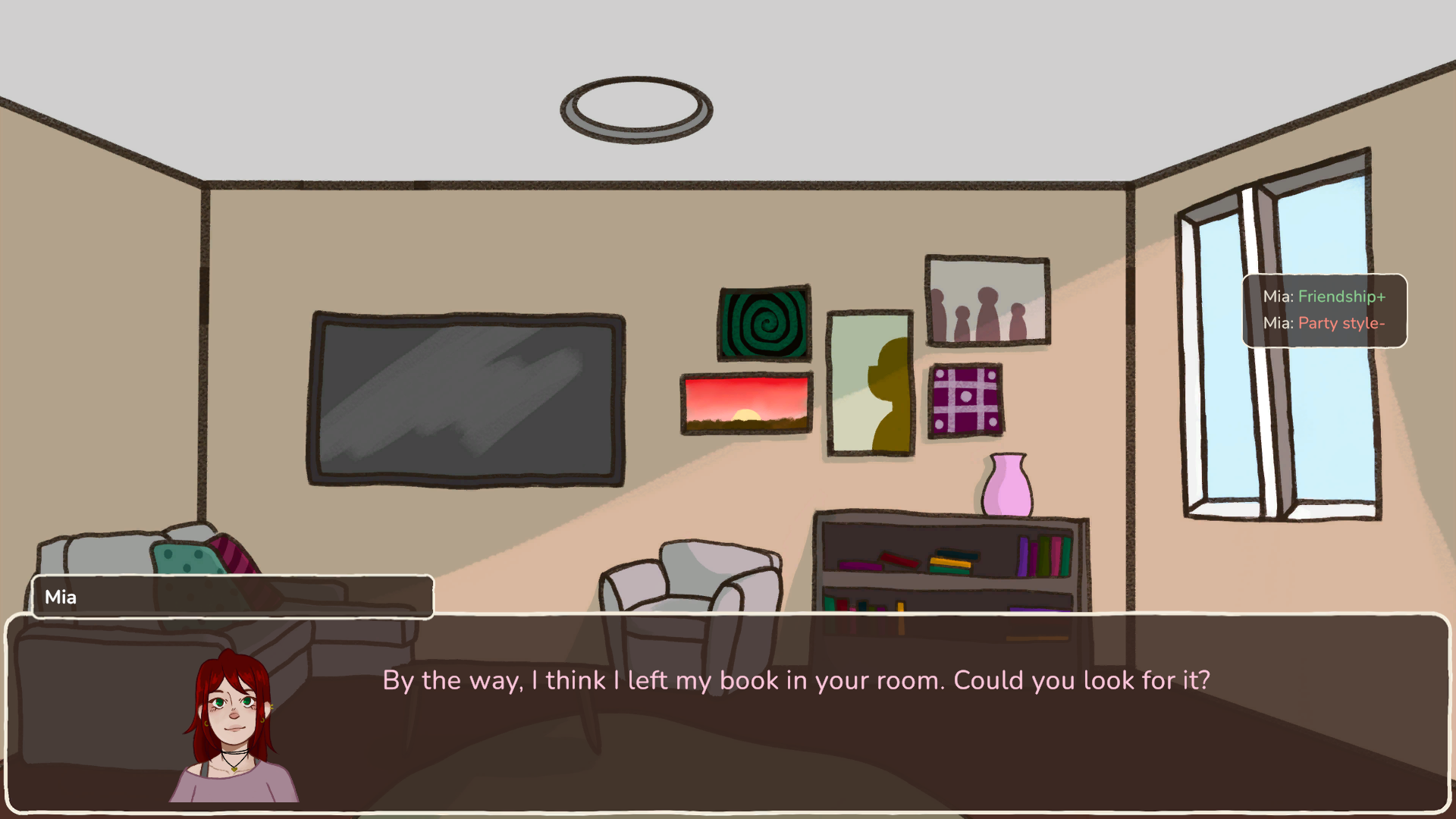
When a stat changes during play, a box appears with one line:
- a number that goes up shows
Mia: Friendship+in green; one that goes down,Mia: Friendship-in red; - a yes/no stat shows an on or off icon;
- a text stat shows a “changed” icon.
Amounts are never shown. At most four boxes are visible at once — a fifth finishes the oldest — and each one fades in and stays 1.8 seconds. With Reduce flashes and motion on, they only fade, with no rise.
Turning them on
Each character field has a Notify changes in gameplay checkbox, in Characters › Variables. Set it on the schema to turn it on for every character, and override it per character where needed. It is off by default.
Global variables can notify too. Tick Notify changes in gameplay on a variable in the Variables tab,
and its changes appear in the same box as <label><mark>, with no character name.
When a notification fires
- On any real change of the value, quest rewards included.
- Never on rollback, or when a save is loaded.
- Setting a stat to the value it already has is not a change.
- Choosing the same decision again after a rollback notifies again. Passing the same set block twice inside one node does not.
- Changes the player makes by hand on the character stats screen — the +/− buttons — never notify.
Walkthrough hints
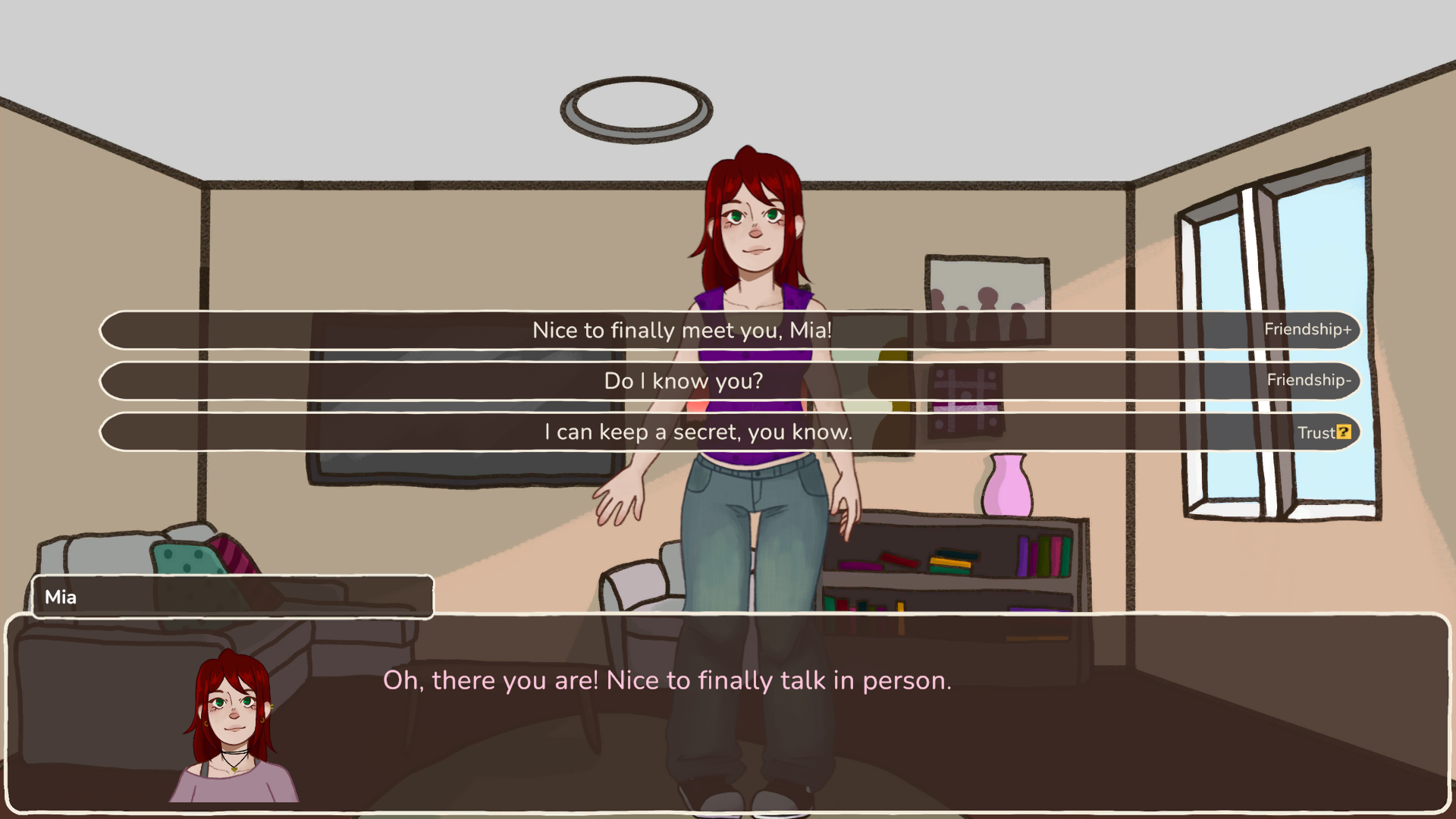
A hint is a mark after a choice’s text: Friendship+ or Friendship-, or an on, off or “changed” icon for
yes/no and text stats. Long hints end in ”…”. Hints are not colored and do not show the character’s name.
Talk menus never show hints.
Turning them on
Walkthrough hints need two switches:
- Your switch — Enable walkthrough, in Characters › Variables › Global. It is a project setting: while it is off, nothing about hints exists for the player.
- The player’s switch — with your switch on, the player gets a Walkthrough hints option in Preferences. It is off by default, and hidden while your switch is off. Reset to defaults turns it off again.
To put the same switch anywhere else in your UI, add the VNWalkthroughToggle component to a toggle. A
screen button can flip it too, through the @pref:walkthrough preference — see
Screens and HUD.
Which fields get hints
Each character field has a Show in walkthrough checkbox, next to Notify changes in gameplay: on the schema as the default, and overridden per character. Global variables have it too. Only fields with it on get automatic hints.
Hints are worked out from the choice’s own effects plus the set blocks of the node it leads to, up to that node’s first exit block. You do not write them; they follow the story as you edit it.
Controlling hints on one choice
In the Story inspector, each choice has a Walkthrough section:
- an eye toggle per automatic hint, to hide one;
- a list of manual hints. A manual hint can use any character field or global variable, even one without Show in walkthrough, and it wins over the automatic hint for the same field;
- while your project switch is off, a note with a button that opens Characters › Variables › Global.
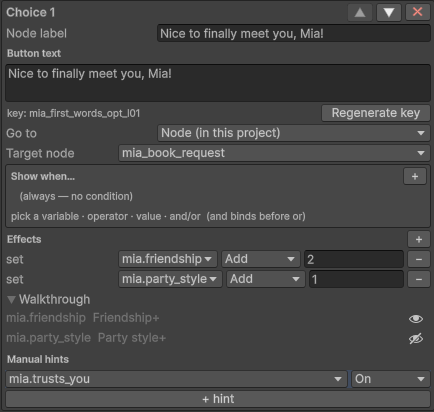
The manual hint rows take Delete / Backspace, Ctrl+D (duplicate), Ctrl+C / Ctrl+V, the Up / Down arrows to move a hint, and Esc to clear the selection. The same actions are in the right-click menu, with their shortcuts.
In a .vnbeasty script, a
choice takes hint(...) and hide(...) groups:
choice "Tell her the truth" hint(mia.trust up) hide(mia.friendship) -> truth
choice "I can keep a secret, you know." hint(mia.trusts_you on) -> mia_promise
choice "Lie" hint(likes_books on) -> lie
hint adds manual hints and hide hides automatic ones, each a comma-separated list. The marks are up,
down, on, off and changed; with no mark, up.
Reading the player’s choice
@pref:walkthrough can be read in conditions — to show a tip only to players who use hints, for example. It
is never saved, and the story cannot change it.
Labels and translation
A notification or a hint shows the field’s Display name when it has one, else its key. Set it in Characters › Variables (or on the variable, for globals). The display name appears as soon as any of Show on stats, Notify changes in gameplay or Show in walkthrough is on.
Display names are translated in Localization › Game UI, and their translations follow a renamed variable. See Localization.
In the editor preview
The VN Preview shows notifications, and ▶ Play effects replays them. It shows hints on choices whenever the project switch is on. A custom canvas without the notification host shows nothing.
From code
VN.Walkthrough reads and changes the player’s switch, and VN.OnWalkthroughChanged fires whenever its
effective value changes, whatever the cause. The full API — including how a custom notification view should
treat global variables — is in Gameplay APIs.
See also
- Characters — character fields and their checkboxes.
- Variables and conditions — global variables.
- Choices and decisions — the choices hints appear on.
- Screens and HUD — buttons that change preferences.
- House Demo — Mia’s first words use both features.