

beasty-visual-novel / getting-started / editor-tour.md
Editor tour
A guided walk through the Beasty VN window and the other editor windows, so you know where everything is before you need it. Each section says what you do in that tab and points at the page that covers it properly.
Open the window with:
Tools > Beasty VN > EditorThe top bar
The strip across the top of the window is the same on every tab.
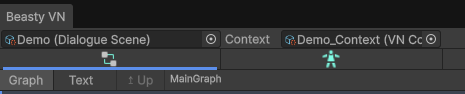
| Control | What it does |
|---|---|
| DialogueScene field | Which story you are editing. Drop a DialogueScene here, or double-click one in the Project window and the editor opens on it. |
| Context field (+ New) | The shared world this story uses. There is one VNContext for your whole game, and it is normally already assigned. New creates one if you have none. |
| Characters | Opens the cast in its own window. |
| Validate | Walks the root graph and every subgraph and reports dangling references. See Validation and ids. |
| Global Settings | Opens the project-wide VN settings. |
On a narrow window the three action buttons collapse into a ... menu.
If no DialogueScene is assigned, the Story tab offers a Setup blank canvas… button, which creates the whole scaffolding in one click.
The nine tabs

Story
Where you build the story. This is the tab you will live in, and it has three panels.
- The Add blocks palette (left). Every block, grouped by category: Dialogue, Scene, Clear, State, Quests, World, Items, Audio, Input, Flow. Click a block to append it to the selected node; drag it onto the block list to insert it at a position instead. The panel is resizable, and it collapses to a thin strip when you want the room.
- The graph canvas (middle). Your nodes and the edges between them. Right-click empty space to
Createa node; right-click a node toRename,Set as Entry Node,Create Subgraph/Open Subgraph, orDelete Node. Drag from a node’s output port to another node’s input port to wire them. - The node inspector (right). The selected node’s blocks, in the order they run, plus whatever else that kind of node needs — a Choice node’s options, a Decision node’s branches, a SubGraph node’s outcome routes.
Three more controls in this tab:
- The Graph / Text toggle. Flips between the node graph and the same scene written as a
.vnbeastytext script. When the two have diverged since the last sync, the Graph tab shows a warning marker to tell you so. The graph is always the source of truth: a script that does not parse never overwrites your nodes. See The text script. - The subgraph breadcrumb. When you open a subgraph, the breadcrumb shows where you are, and the Up button takes you back out. See Subgraphs.
- The Lang selector. Which language you are typing node text in. This is the authoring language. It is independent of the language the game runs in — use it to write a scene directly in a translation.
Covered by: The story graph, Blocks reference, Dialogue and the stage, Choices and decisions.
Characters
The cast, and everything attached to a character. Four sub-tabs:
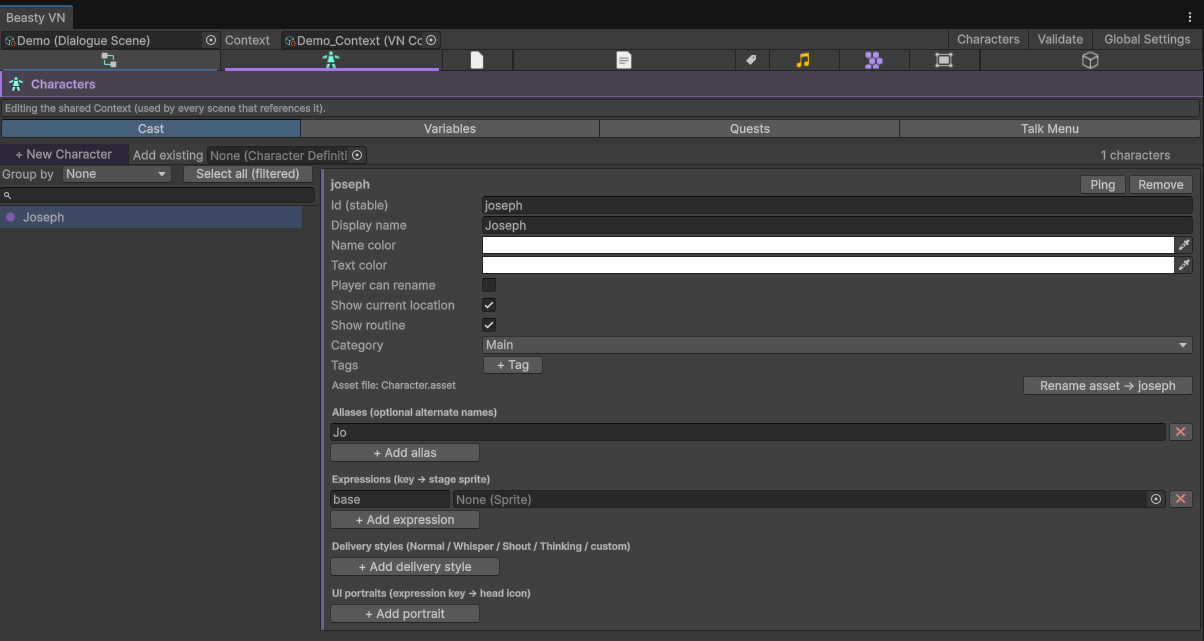
- Cast — identity (id, display name, colours, category, tags), aliases, expressions, delivery styles, portraits. + New Character creates one; Add existing adopts a CharacterDefinition you already have.
- Variables — the universal schema (the fields every character has) and this character’s own fields.
- Quests — the quests this character owns.
- Talk Menu — what the player can say to this character.
Covered by: Characters, Quests, The talk menu.
Variables
Your global variables: key, type, default value, and how the variable behaves. It is a list with a detail panel, and character variables get a character list down the left so you can move between characters quickly.
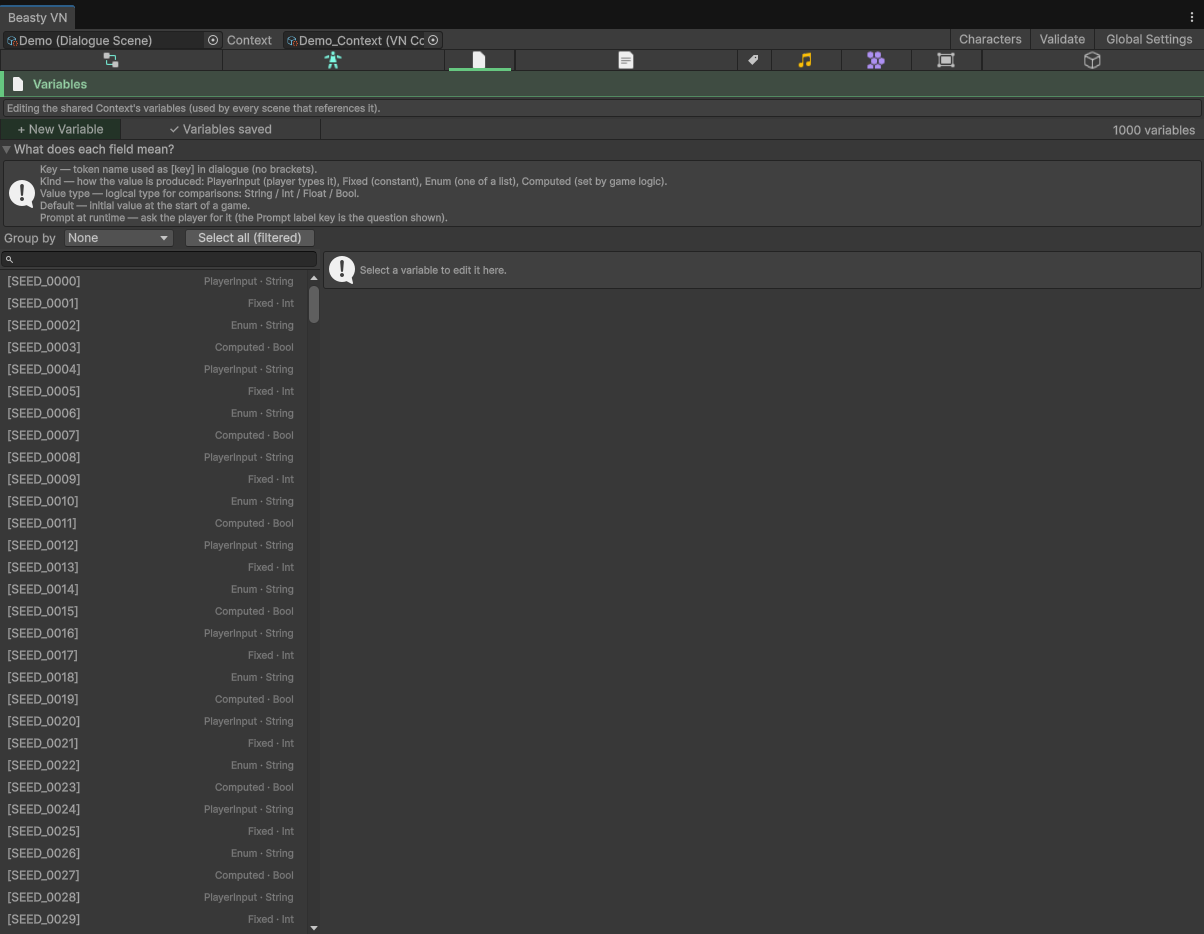
Covered by: Variables and conditions.
Localization
The translation grid: one row per key, one column per language. A Story / UI (global) toggle switches between the story’s own table and the shared UI table that every menu and screen reads from.
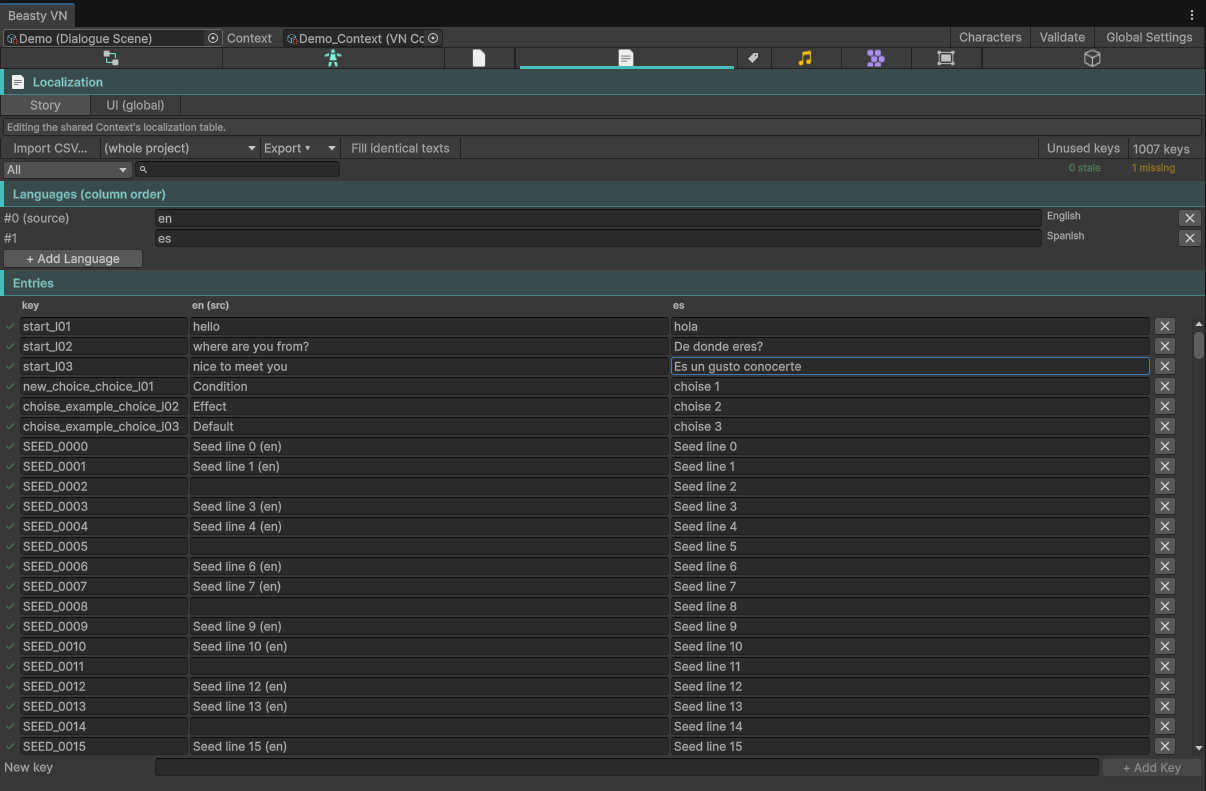
Here you add languages, import and export CSV/TSV, and see at a glance which cells are missing, stale or done.
Covered by: Localization.
Dictionary
Text tokens the player can change — the player’s name, their home town, whatever your story lets them decide. A token has a key, a default value, and a flag for whether the player may edit it.
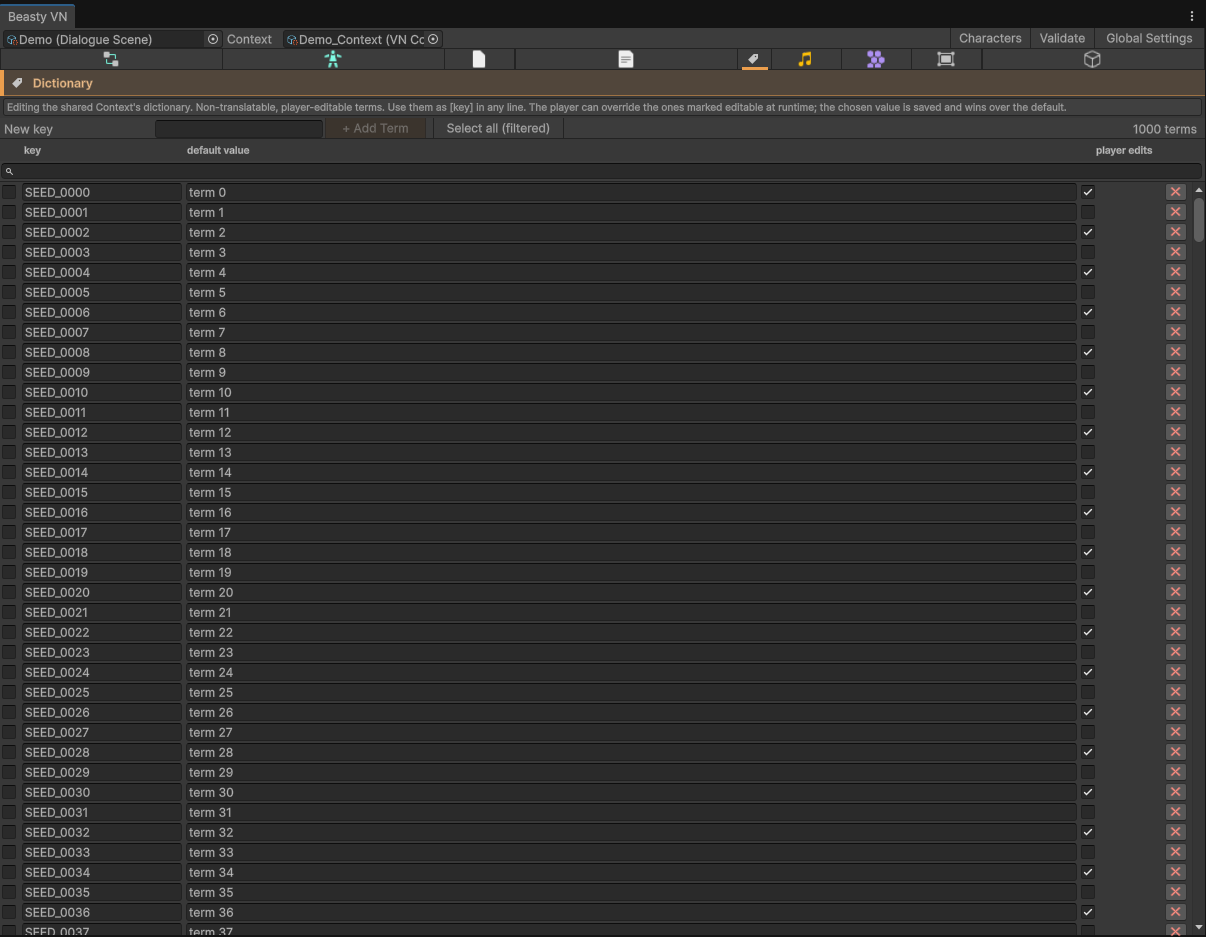
Covered by: The dictionary.
Music
The music queue for each app mode: the main menu, the visual novel, free roam, and your own custom mode. Each queue has its clips, a play mode, a volume and a crossfade time.
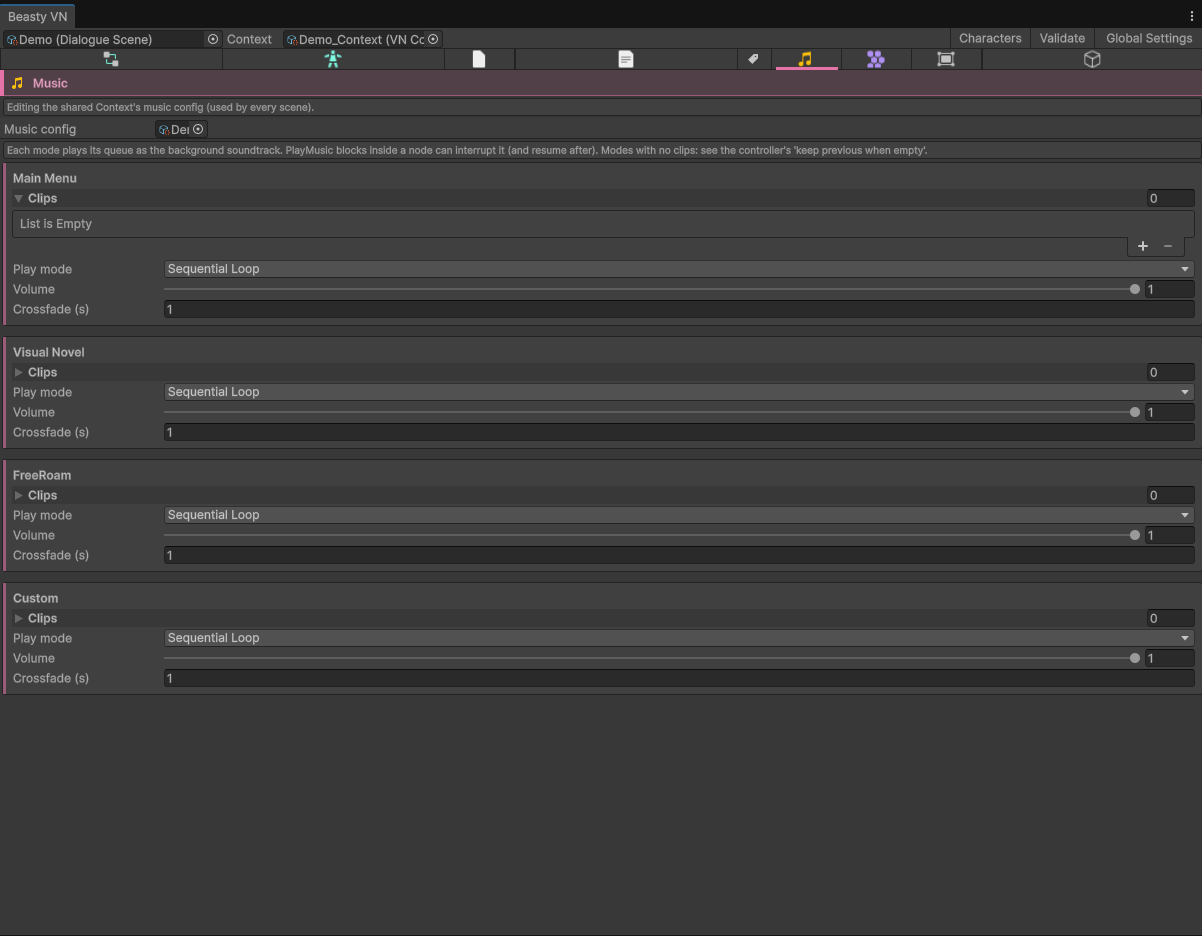
Covered by: Audio and music.
FreeRoam
The room editor, embedded in the window. It has a Map view — a diagram of your rooms and the passages between them — and drill-in editing of one room, which is the one place you author that room’s background, its doors and its interactable objects. A Routines toggle swaps the canvas for the routine grid: a week x daypart lens over your characters’ schedules.
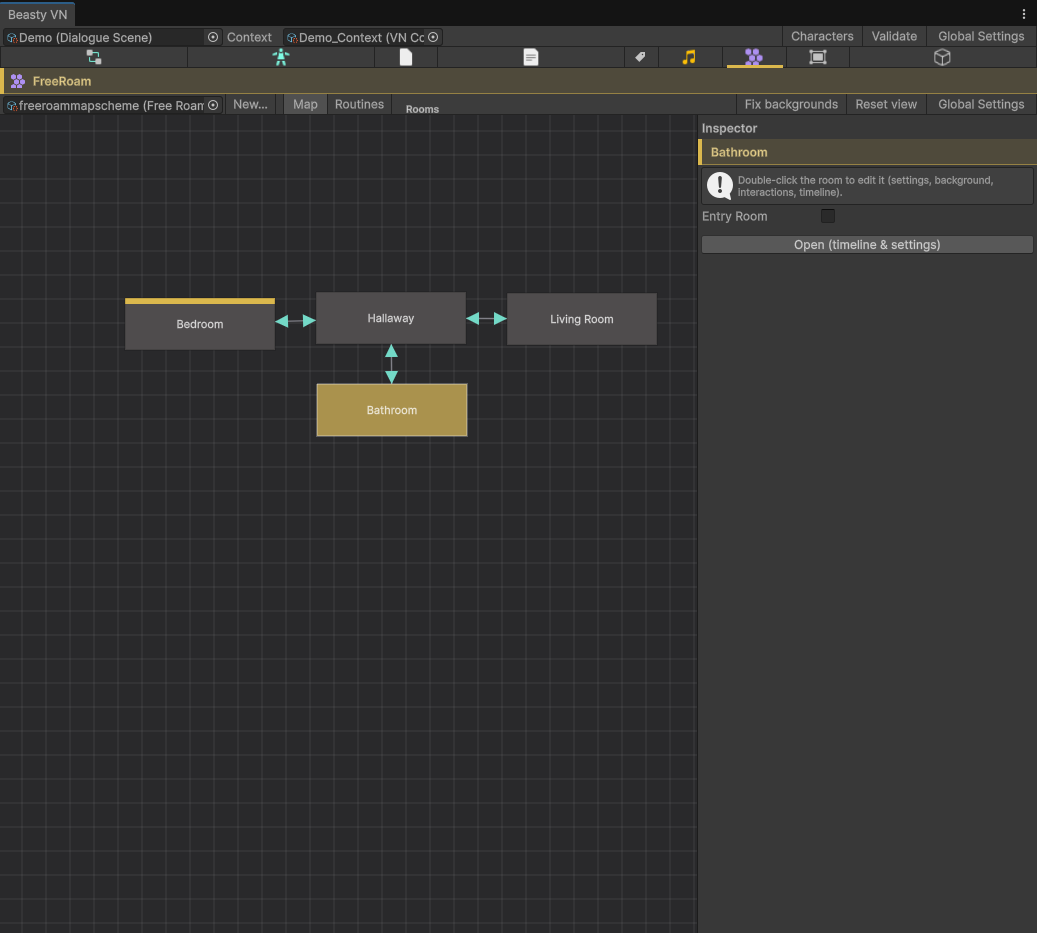
Covered by: Free roam rooms, Interactables and doors, Character routines.
Screens
HUD and overlay screens: the persistent bar that is always on screen, and the panels that open on top of the game. Each screen is a prefab plus a list of the objects in it that do something.
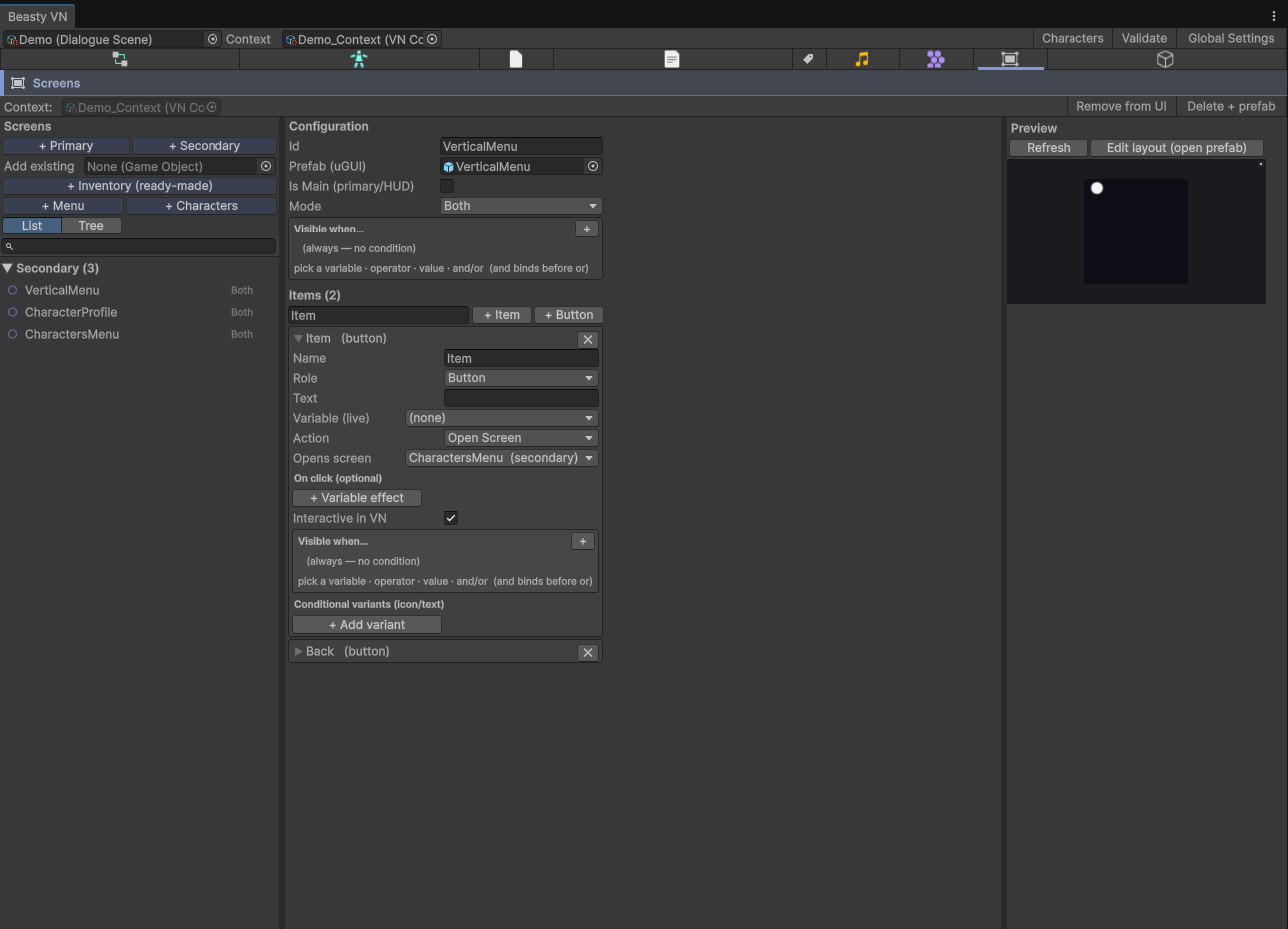
Covered by: Screens and HUD.
Items
Item definitions: id, icon, kind (a key or a consumable), maximum quantity, name and description keys, and what happens when the player uses one.
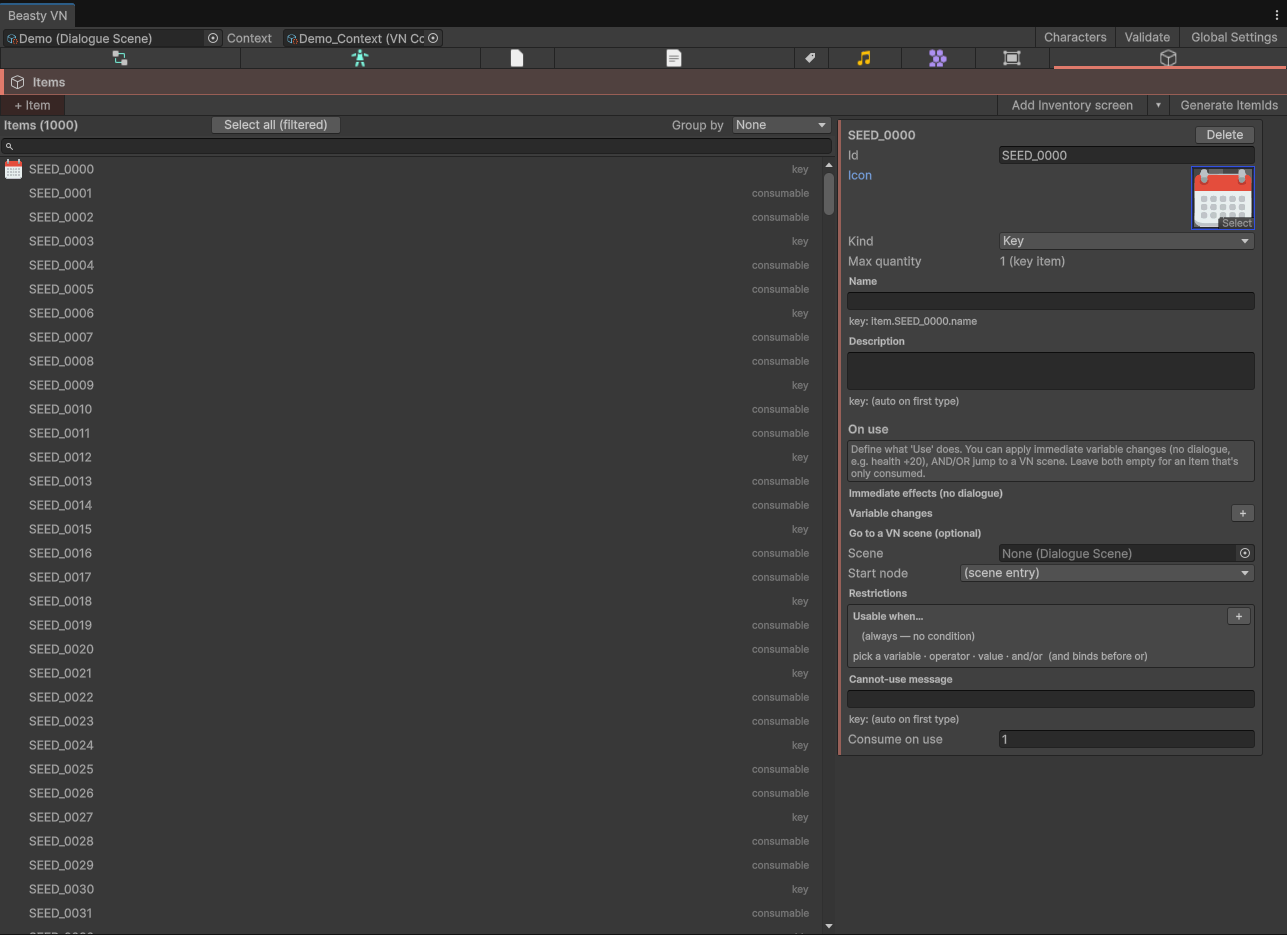
Covered by: Items and inventory.
The other windows
Dialogue Preview
Tools > Beasty VN > Dialogue PreviewPlays a node — backdrop, characters, props, dialogue box — inside an editor window, without entering Play Mode. It can fast-forward to a given block, so you land on the exact moment you are working on. Nothing it does touches the open scene, and nothing is saved.
Covered by: Dialogue preview.
Character Database
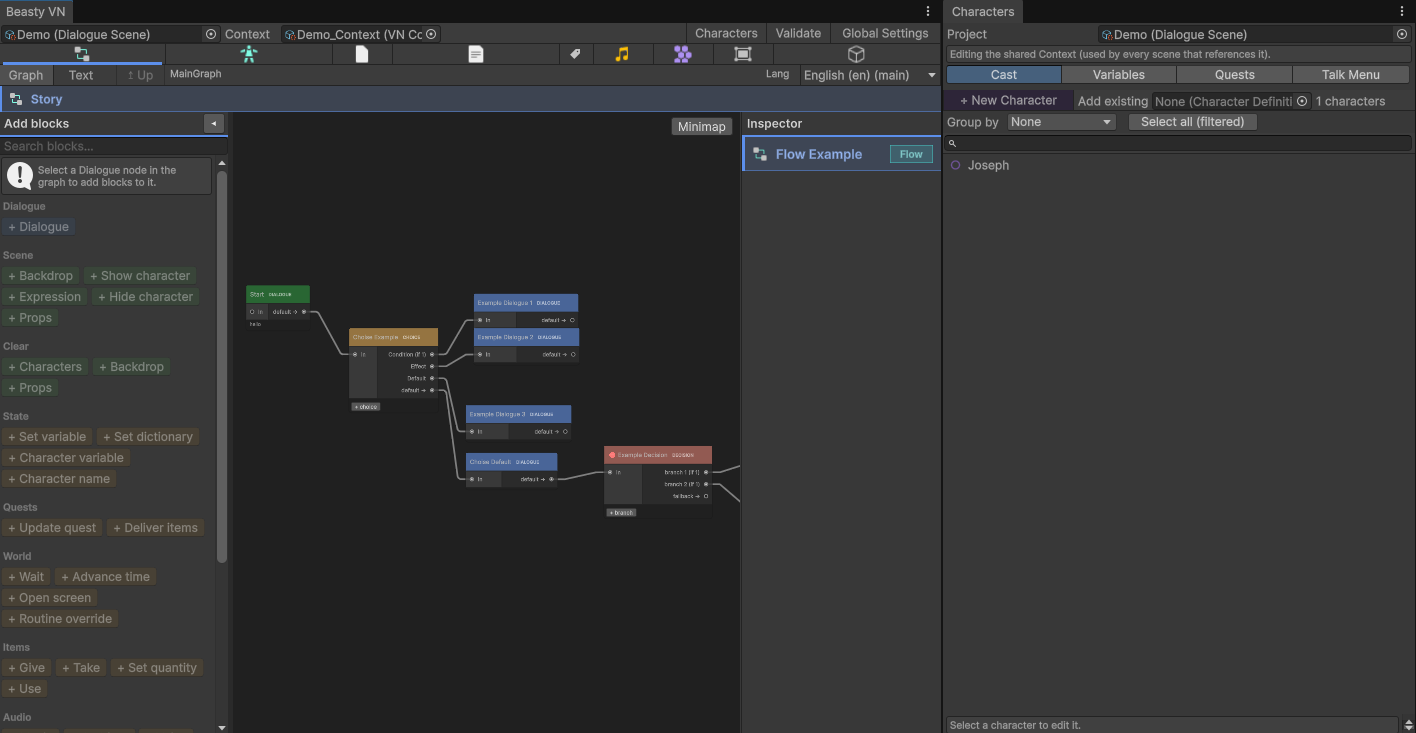
Tools > Beasty VN > Content > Character DatabaseThe Characters tab in a window of its own. Same editor, same data — useful when you want the cast open beside the graph instead of behind it.
Global Settings
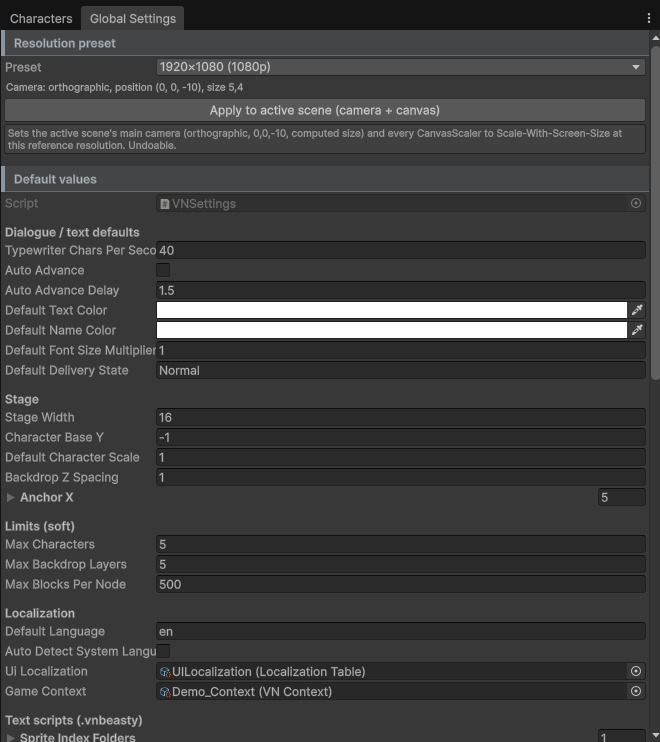
Tools > Beasty VN > Settings > Global SettingsThe project-wide VN settings: the global context, the UI localization table, the default language and
system-language detection, autosave policy, save slots, the rollback limit, and the asset folders used to
resolve names in the text script. It is the same asset as Edit > Project Settings > Beasty VN — open it
whichever way you prefer.
Covered by: VN settings.
See also
- Core concepts
- Your first scene
- Menu items — every menu item in one table
- Assets — every ScriptableObject and its Create menu