

beasty-visual-novel / authoring / blocks-reference.md
Blocks reference
A block is one instruction inside a Dialogue Node. Blocks are the whole authoring vocabulary of the visual novel: a line of dialogue, a backdrop, a character walking on, a variable going up, a door out to the world. This page lists every block that exists, in the order the palette shows them.
The Add blocks panel
The panel on the left of the Story tab is the palette. Select a Dialogue Node in the graph and the palette turns on.
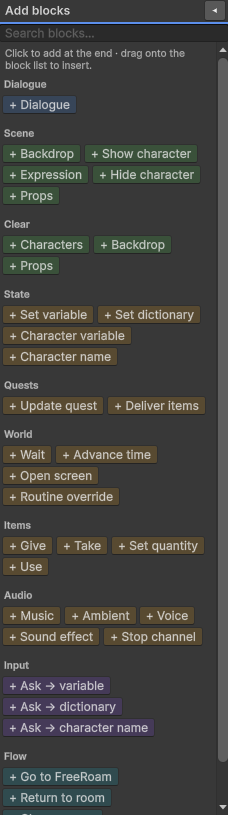
- Click a block button to add it at the end of the selected node’s stack.
- Drag a block button onto the block list to insert it at a specific position.
- Type in the search field at the top to filter the whole catalogue by name.
- The panel is resizable — drag its edge — and the buttons re-pack into as many rows as the width allows. It is also collapsible, so you can fold it away when you are only wiring the graph.
Blocks are grouped into ten categories: Dialogue, Scene, Clear, State, Quests, World, Items, Audio, Input and Flow. They appear in that order.
How blocks run
Blocks run top to bottom. The node starts at the first block and works down.
Only some blocks stop. A Dialogue block shows its line and waits for the player to advance. Every other block does its job and immediately hands over to the next one — the backdrop, the two characters, the music cue and the variable change above a line all happen before that line appears, in one frame, invisibly. That is why you author a scene as: set the stage, then say something.
Four blocks besides Dialogue also stop:
- The three Input blocks (
Ask → variable,Ask → dictionary,Ask → character name) show their question and open the text box together, and wait for the player to type. - A Wait block set to 0 seconds waits for the player to click. See below.
Two behaviours that surprise people
Warning A Wait block with 0 seconds does not wait zero seconds — it waits for the player. It pauses until the player advances, exactly like a dialogue line with no text. Auto stops there too: the pause only ends with a manual advance. That is often what you want (a beat before the door opens). If you meant a short pause, type a number.
Warning A block with no asset assigned does nothing at all. An empty Backdrop block is skipped and whatever was on screen stays on screen. A Music block with no clip is skipped and whatever was playing keeps playing. The block does not clear anything — it is simply not run. To blank the backdrop on purpose use the Clear > Backdrop block; to silence a channel on purpose use Stop channel.
Scene blocks are declarative
Scene blocks (Backdrop, Show character, Expression, Hide character, Props, and the three Clear blocks) describe the state of the stage, not an action. You do not repeat the backdrop on every line; you set it once and it stays until something else changes it. This is what makes the player’s rewind safe: the engine rebuilds the stage for the line it lands on, rather than trying to undo a sequence of actions.
Dialogue
Dialogue
One spoken or narrated line. It is the only block you type free text into, and the block that stops and waits for the player.
| Option | What it does |
|---|---|
| Speaker | The character who says it. Leave it empty for the narrator — no name plate, no portrait. |
| Delivery | The delivery state: Normal, Whisper, Shout, Thinking, or one you defined. It selects that character’s font, colour and text effect. |
| Text | The line. It is stored under a localization key for you. |
| Display name alias | Shows this one line under an alias, for example “The Stranger”, without changing the character’s name. |
Covered in depth in Dialogue and the stage.
Scene
Everything in this category is covered in depth in Dialogue and the stage.
Backdrop
Sets the background. A backdrop is either sprite layers or a video clip, never both.
- Layers mode: up to five sprite layers. Each layer has a sprite, a draw order (0 is furthest back), an offset, a parallax factor, and an optional list of conditional sprites (the first case whose condition passes wins — a bedroom that is dark at night).
- Video mode: a video clip, with
loop,mute,volumeand whether it plays automatically when the backdrop appears.
Show character
Puts a character on stage.
| Option | What it does |
|---|---|
| Character | Who. |
| Expression | Which stage sprite. Defaults to base. |
| Portrait | Optional: a different UI portrait from the on-stage expression. Empty = use the expression. |
| Position | Left, CenterLeft, Center, CenterRight, Right, or Custom with a normalized X. |
| Scale | Size multiplier. |
| Flip | Mirrors the sprite horizontally. |
| Layer | Slot 0 to 4. Decides who is drawn in front of whom. |
Expression
Changes the expression of a character already on stage. It can also set the dialogue-box portrait at the same time, so a character can look sad on stage while the portrait shows something else.
Hide character
Removes one character from the stage.
Props
Sets the loose foreground props. Same shape as backdrop layers, including conditional sprites.
Clear
Characters
Clears the stage of characters: all of them, or just one position (a given anchor and layer).
Backdrop
Removes the background entirely, sprite layers or video. This is the block you use to go to black — an empty Backdrop block will not do it.
Props
Removes every prop.
State
These blocks write to the variable store, which is the same store conditions read and saves persist. See Variables and conditions.
Set variable
Changes one of your variables. Pick the variable, the operation and the value.
Operations: Assign, Add, Subtract, Toggle. Toggle flips a Bool and ignores the value.
Set dictionary
Sets a dictionary token — one of the player-editable text tokens that appear inside lines. See The dictionary.
Character variable
Sets one field on one character (affection, trust, a flag). Same four operations as Set variable. The field picker is scoped to that character’s own fields plus the universal ones from the schema. See Characters.
Character name
Changes a character’s displayed name for the rest of the game. Their id never changes.
| Source | What it does |
|---|---|
| Alias | One of the aliases you defined on the character. |
| Text | A name you type. It can be plain text, or a localization key. |
| Variable | The current value of a variable or dictionary token — for example a name the player typed earlier. |
| Reset to base | Clears the override; the character goes back to their own name. |
The override is persisted, so it survives a save and a rewind. To show an alias for a single line without changing anything, use the Dialogue block’s display-name alias instead.
Quests
See Quests.
Update quest
Updates one quest. Four actions:
| Action | What it does |
|---|---|
| Set state | Writes the quest state: notstarted, active, completed or failed. |
| Set stage | Sets an ordered quest’s stage index. |
| Advance stage | Adds to an ordered quest’s stage index. |
| Set objective | Marks one objective done, or clears it. |
Deliver items
Hands over the items of a gather-and-deliver objective: it checks the inventory, consumes the items and marks the objective done.
Note If the player does not have the items, this block does nothing and says nothing. It is a silent no-op. Gate the branch that reaches it with an inventory condition, or the player hands over three potions they never had and no one notices.
World
Wait
Pauses for a number of seconds before the next block runs. Clicks during the pause are swallowed, Skip fast-forwards it, stepping back cancels it, and a revisit after a rewind does not wait again — like a side effect, the pause runs once. 0 seconds waits for the player to click instead (see the warning above).
Advance time
Moves the game clock. Operations: AdvanceDayparts, AdvanceHours, AdvanceDays, SetDaypart, SetHour,
SetWeekday. The hour operations only apply in Clock mode.
Time never moves on its own — this block is one of the few things that moves it. See Game time.
Open screen
Opens a secondary screen (the inventory, the character list, an overlay of your own) by its id, through the same screen stack a HUD button uses. See Screens and HUD.
Routine override
Switches a character’s routine profile, so from this point on they follow a different schedule. Leave the profile name empty to put them back on their default. See Character routines.
Items
All four are the same block with a different operation. See Items and inventory.
Give
Adds a quantity of an item. Clamped to the item’s maximum.
Take
Removes a quantity. Clamped to 0 — taking 5 of an item the player has 2 of leaves them with 0, it does not go negative and it does not fail.
Set quantity
Sets the exact quantity the player holds.
Use
Runs the item’s use logic: its condition, its effects and its consumption. The quantity field is ignored.
Audio
See Audio and music.
Music
Crossfades a clip onto the Music channel.
| Option | What it does |
|---|---|
| Clip | The music. No clip = the block is skipped; it does not stop the music. |
| Loop | Repeat when it ends. |
| Volume | 0 to 1. |
| Fade | Crossfade length in seconds. |
| Pause background | On by default. Pauses the persistent background-music queue while this cue plays, and lets it resume when the story moves on to a node with no pausing cue. |
Ambient
Crossfades room tone onto the Ambient channel. Clip, loop, volume and fade.
Voice
Plays a voice clip on the Voice channel. Clip and volume. Starting a new voice line stops the previous one.
Sound effect
Plays a one-shot on the SFX channel. Clip and volume.
Stop channel
Stops one channel — Music, Ambient, Sfx or Voice — with a fade. This is how you deliberately silence
something. An empty Music block will not do it.
Input
The three Input blocks are self-contained prompts: they carry their own question line (with an optional speaker, delivery and alias, exactly like a Dialogue block), and when the story reaches them the question and the text box appear together. The player types, and the answer is written somewhere.
All three share these options:
| Option | What it does |
|---|---|
| Default | The value used when the player leaves the box blank. |
| Required | When on, a blank answer is rejected and the player must type something. |
Ask → variable
Writes the answer into one of your variables. The input follows the variable’s type: a Bool gets a true/false
dropdown, a number gets a number field, a String free text. If a typed variable shows up as free text in a
build, the prompt could not resolve the variable’s definition — the console says so, and the place to look is
the Game Context field on VN settings.
Ask → dictionary
Writes the answer into a dictionary token.
Ask → character name
Sets a character’s displayed name to what the player typed. This is how the player names the protagonist.
Flow
A flow block hands control out of the visual novel. Put one at the end of a dialogue node and it runs when the player advances past the last line. The variable store survives the jump — nothing is lost.
The same four exits also exist as a dedicated Flow (Mode Switch) Node. Which to use is covered in Transitions. Rooms are covered in Free roam rooms.
Go to FreeRoam
Leaves the novel and enters a room. Pick the map, and optionally the room; leave the room empty to arrive at the map’s entry room.
Return to room
Goes back to the free-roam room the player was in just before this novel started. You pick nothing — “where you came from” is implicit. If the player did not come from free roam, they arrive at the entry room instead.
Choose room
Leaves the novel and lets the player pick which room to go to. Optionally restrict the list to a whitelist of rooms; leave it empty and every room in the map is offered.
Go to VN scene
Jumps to another Visual Novel — from the Intro to Chapter 1, say — without passing through free roam. Optionally start at a specific node inside it instead of its entry node. This swaps the whole story asset, unlike a subgraph, which stays inside the current one.
See also
- The story graph — the canvas and the seven node types.
- Dialogue and the stage — the Dialogue and Scene blocks in depth.
- Choices and decisions — branching.
- Transitions — flow blocks versus flow nodes.
- Variables and conditions — the store everything writes to.