

beasty-visual-novel / world / items-and-inventory.md
Items and inventory
Items are things the player carries. A key that opens a door, a potion they drink, three flowers they were asked to gather. This page covers defining an item, handing it out, and the inventory screen the player opens.
Defining an item
Open Tools > Beasty VN > Editor, go to the Items tab and press + Item. Items live in the shared
context, so one list serves every scene in the game.
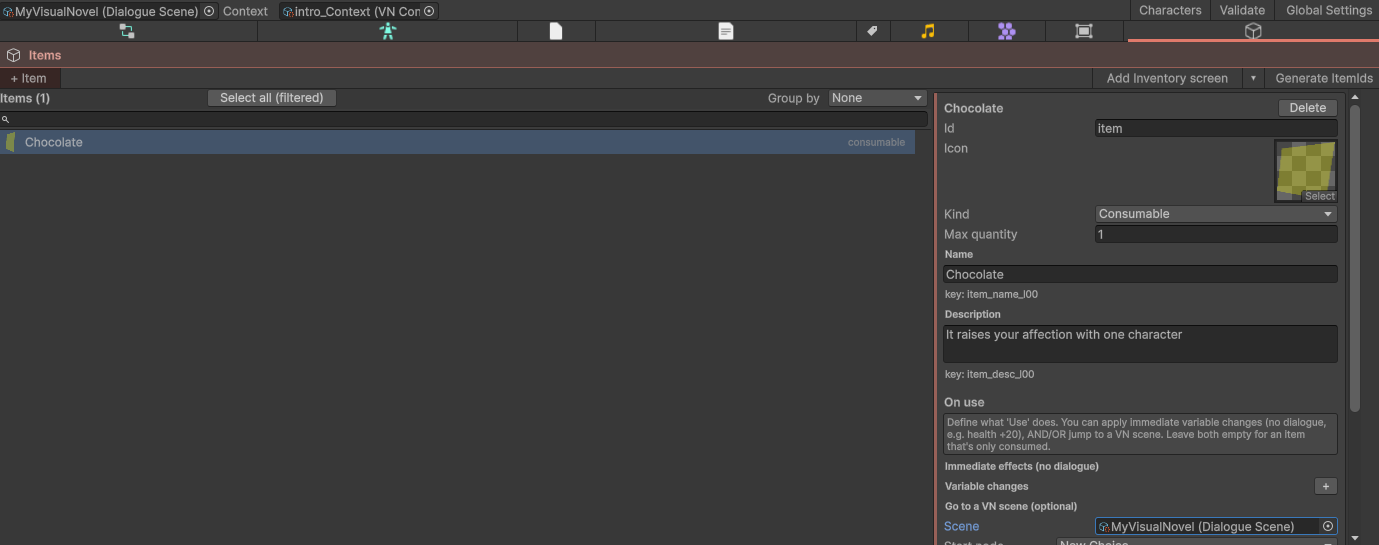
| Field | What it is |
|---|---|
| Id | The stable name (potion). Auto-generated, and editable. Everything points at this. |
| Icon | The sprite shown in the inventory grid and the detail popup. |
| Kind | Key or Consumable. |
| Max quantity | How high a consumable stacks. A Key item is always capped at 1, whatever this says. |
| Name key | The localization key of the item’s displayed name, in the global UI table. You author the text inline in the Items tab. |
| Description key | The localization key of the description shown in the detail popup. |
A Key item is a possession flag: the player has it or does not. A Consumable stacks from 0 up to its maximum.
On use
Every item has an on use section. It is what happens when the player presses Use in the inventory, or when a Use block runs.
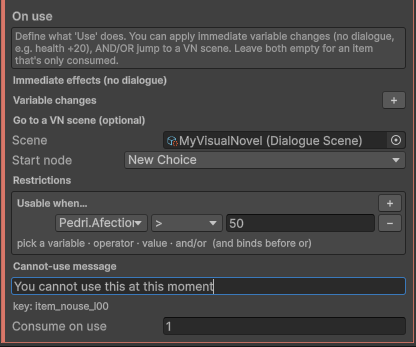
| Field | What it does |
|---|---|
| Use condition | Use is only allowed when this condition passes. Empty = usable anywhere. |
| Cannot use message | The localization key of the message shown when the condition fails. Empty = a built-in message. |
| Effects | Variable changes applied on use: health += 20, door_unlocked = true. |
| Jump to scene (+ start node) | A VN scene to jump into when the item is used — a “drink the potion” cutscene. Empty = stay where you are. |
| Consume amount | How many are removed. Consumables default to 1. Set it to 0 for a key item, which is used but not spent. |
This is the same condition and the same effects the rest of the engine uses, so item logic behaves exactly like a choice’s logic. See Variables and conditions.
The blocks
Four operations, all in the palette’s Items category:
| Block | What it does |
|---|---|
| Give | Adds N. Clamped to the item’s maximum. |
| Take | Removes N. Clamped to 0. |
| Set quantity | Sets the exact number held. Clamped to 0..max. |
| Use | Runs the item’s on-use logic: checks the condition, applies the effects, consumes, and jumps if a scene is set. |
Give and Take never overflow and never go negative, so you cannot end up with -2 potions by taking one too many.
In the text script these are give 3 potion, take 1 potion, item potion = 5 and use key.
An item’s count is just a variable
The number of an item the player holds lives in the shared variable store under the key item.<id>. It is
a plain number: item.potion is 3, item.rusty_key is 0 or 1.
That is the whole inventory. There is no separate inventory save file, no inventory system to talk to. Which means:
- Any condition can ask about items.
item.potion >= 3is a clause like any other. Put it on a choice, a door, a quest objective, a routine rule, a screen button. - The inventory is in every save, because the store is.
- It rewinds. Roll back past the block that took the key and the player has the key again.
Gating on an item
Give a choice a condition of item.rusty_key >= 1 and the choice “Unlock the gate” only appears when the
player actually has the key. Do the same on a door’s access exception and the door stays shut, with a line
explaining why, until they find it. See
Choices and decisions and
Interactables and doors.
Note The Deliver items block silently does nothing when the player is short of the items. If a branch must be certain the hand-over happened, gate that branch on the item count first. See Quests.
The inventory screen
The Inventory prefab is a ready-made overlay: a grid of the items the player currently holds, and a
detail popup.
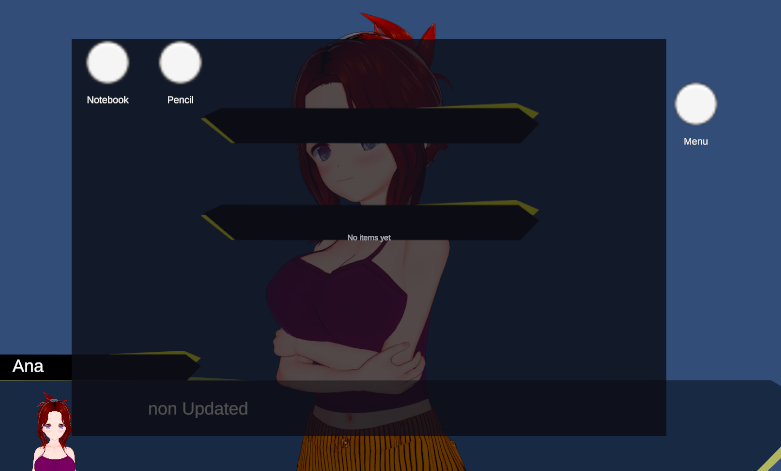
- The grid is dynamic. It shows one slot per item with a quantity of at least 1, in the player’s saved slot order. Use the last potion and the slot disappears and the grid closes up. Pick up something new and it is appended.
- A slot shows the item’s icon and how many are held.
- The detail popup opens when the player clicks a slot. It shows the icon, the name, the description and a Use button, which runs exactly the on-use logic above — including refusing, with your message, when the use condition fails.
It is a normal uGUI prefab. Restyle it, move things around, replace the art; see UI prefabs.
Adding it and opening it
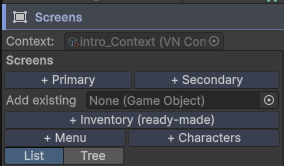
In the editor’s Screens tab, press + Inventory (ready-made). That copies the prefab into your project and registers it as a secondary screen with an id. Only one inventory is ever created — press it twice and it selects the existing one.
The player reaches it in one of two ways:
- A HUD button. Add an item to your HUD screen with the action OpenScreen, pointing at the inventory’s screen id. This is the usual way.
- The Open screen block (palette category World). Opens it from inside the story — after the player is handed their first item, for example.
Secondary screens form a stack with automatic Back and Close, so an inventory opened over a room closes back to the room. See Screens and HUD.
See also
- Variables and conditions —
item.<id>and the store it lives in - Quests — gather-and-deliver objectives and the Deliver items block
- Screens and HUD — HUD buttons, overlays and the screen stack
- UI prefabs — restyling the inventory
- Gameplay APIs — the
InventoryAPI for programmers